حقوقها
در Odoo، حقوقها بر اساس پنج عامل محاسبه و تعیین میشوند: انواع ساختار حقوق، ساختارهای حقوق، قواعد، پارامترهای قواعد و سایر انواع ورودی. این عوامل در کنار یکدیگر، نحوهٔ محاسبهٔ حقوق هر کارمند را تعیین میکنند.
هر نوع ساختار شامل یک یا چند ساختار در درون خود است. هر ساختار شامل مجموعهای از قواعد است و هر قاعده از پارامترها برای تعریف نحوهٔ محاسبهٔ مبالغ مشخص استفاده میکند. ورودیهای اضافی (مانند پاداش یا کسورات) نیز میتوانند برای تنظیم حقوق نهایی گنجانده شوند.
هنگامی که فیشهای حقوقی محاسبه میشوند، Odoo زمان کارکردهٔ کارمند را از ورودیهای کاری او محاسبه میکند، سپس ساختار، قواعد و پارامترهای مربوطه را از نوع ساختار تخصیصیافته به کارمند اعمال میکند تا پرداخت کل او را تعیین کند.
انواع ساختار
در Odoo، یک نوع ساختار ساختارهای حقوق مرتبط را گروهبندی میکند. هنگامی که یک قرارداد یک نوع ساختار را مشخص میکند، فقط ساختارهای درون آن نوع برای محاسبهٔ پرداخت کارمند استفاده میشوند. هر نوع ساختار، ساختارهای جداگانهای را در خود جای میدهد که هر کدام شامل مجموعهای از قواعد برای پردازش یک ورودی تایمشیت است.
انواع ساختار، جنبههای کلیدی پیکربندی حقوق و دستمزد را تعریف میکنند، از جمله تناوب پرداخت به کارمندان، ساعات کاری آنها، ساختار حقوق پیشفرض، و اینکه دستمزدها ثابت (مبتنی بر حقوق) یا متغیر (مبتنی بر ساعت) هستند.
Example
یک نوع ساختار به نام Employee شامل دو ساختار متفاوت در درون خود است: یک ساختار Regular Pay که همهٔ قواعد جداگانه برای پردازش پرداخت عادی را شامل میشود، و یک ساختار End of Year Bonus که قواعد را فقط برای پاداش پایان سال شامل میشود. هر دو متعلق به نوع ساختار Employee یکسان هستند.
با رفتن به ، انواع ساختار موجود را مشاهده کنید.
دو نوع ساختار پیشفرض در Odoo از پیش پیکربندی شدهاند: کارمند و کارگر.
معمولاً کارمند برای کارمندان حقوقبگیر استفاده میشود، به همین دلیل نوع دستمزد یک دستمزد ثابت ماهانه است، و کارگر معمولاً برای کارمندانی که ساعتی پرداخت میشوند استفاده میشود، بنابراین نوع دستمزد دستمزد ساعتی است.
توجه
اگر از بومیسازیهای حقوق و دستمزد مخصوص یک کشور استفاده میکنید، توصیه میشود از ساختار موجود در سند بومیسازی کشور مربوطه استفاده کنید.

نوع ساختار جدید
اگر انواع ساختار پیشفرض نیازهای شرکت را برآورده نمیکنند، به بروید و روی جدید کلیک کنید تا یک نوع ساختار سفارشی ایجاد کنید.
هشدار
هنگام ایجاد یک نوع ساختار حقوق جدید، اطمینان حاصل کنید که همهٔ قوانین محلی و ملی در نظر گرفته شدهاند. هنگام پیکربندی ساختارهای حقوق و دستمزد، با بخش حسابداری تأیید کنید تا اطمینان حاصل شود همهٔ الزامات برآورده شدهاند.
ادامه دهید و اطلاعات زیر را در فیلدها وارد کنید:
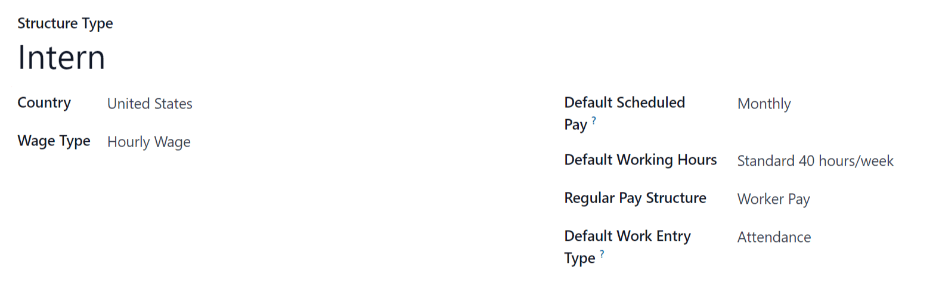
نوع ساختار: نام نوع ساختار جدید را وارد کنید، مانند
EmployeeیاWorker.کشور: کشوری را که نوع ساختار جدید برای آن اعمال میشود از منوی کشویی انتخاب کنید.
نوع دستمزد: نوع دستمزد را برای ساختار انتخاب کنید:
دستمزد ثابت ماهانه: برای کارمندان حقوقبگیری که در هر دورهٔ پرداخت دستمزد یکسانی دریافت میکنند.
دستمزد ساعتی: برای کارمندانی که بر اساس ساعات کارکرده طی یک دورهٔ پرداخت، پرداخت میشوند.
پرداخت زمانبندی شده پیشفرض: برنامهٔ پرداخت معمول برای نوع ساختار جدید را از منوی کشویی انتخاب کنید. این نشان میدهد که این نوع خاص از ساختار با چه تناوبی پرداخت میشود.
برنامه کاری پیشفرض: ساعات کاری پیشفرض برای نوع ساختار جدید را از منوی کشویی انتخاب کنید. همهٔ ساعات کاری در دسترس برای شرکت انتخابشدهٔ کنونی در منوی کشویی ظاهر میشوند. ساعات کاری پیشفرض، گزینهٔ Standard 40 hours/week است. اگر ساعات کاری موردنیاز در فهرست ظاهر نشد، میتوان مجموعهٔ جدیدی از ساعات کاری پیشفرض ایجاد کرد.
ساختار پرداخت عادی: نام ساختار پرداخت عادی را تایپ کنید. این بهعنوان گزینهٔ پیشفرض هنگام تولید فیشهای حقوقی استفاده میشود.
نوع سند کار پیشفرض: نوع ورودی کاری پیشفرض را که برای ایجاد همهٔ ورودیهای کاری کارمند استفاده میشود انتخاب کنید.
ساعات کاری پیشفرض جدید
برای ایجاد ساعات کاری پیشفرض جدید، نام ساعات کاری جدید را در فیلد برنامه کاری پیشفرض روی فرم نوع ساختار جدید تایپ کنید. روی Create and edit کلیک کنید. یک فرم ساعات کاری پیشفرض ظاهر میشود. فرم ساعات کاری پیشفرض دو بخش دارد: یک بخش اطلاعات عمومی، و یک تب که همهٔ ساعات کاری جداگانه را بر اساس روز و زمان فهرست میکند. هنگامی که فرم تکمیل شد، روی ذخیره و بستن کلیک کنید.
نام: نام ساعات کاری پیشفرض جدید را تایپ کنید. این باید توصیفی و قابل فهم باشد، مانند
Standard 20 Hours/Week.ساعات انعطافپذیر: تیک این کادر را بزنید تا کارمندان بتوانند زمان شروع و پایان خود را تنظیم کنند، در حالی که مجموع ساعات روزانهٔ یکسانی را حفظ میکنند.
تماموقت شرکت: تعداد ساعت در هفتهای را که یک کارمند باید کار کند تا کارمند تماموقت محسوب شود وارد کنید. معمولاً این حدود ۴۰ ساعت است و این عدد بر اساس وضعیت استخدامی کارمند (تماموقت در برابر پارهوقت) بر انواع مزایایی که یک کارمند میتواند دریافت کند تأثیر میگذارد.
میانگین ساعات کاری در روز: بر اساس ساعات کاری در تب ساعت های کاری بهطور خودکار پر میشود. این ورودی با تعیین تعداد منابعی که میتوان در هر روز کاری استفاده کرد، بر برنامهریزی منابع تأثیر میگذارد.
نرخ زمان کار: این درصد بر اساس ورودی تماموقت شرکت و ساعات کاری پیکربندیشده در تب ساعت های کاری بهطور خودکار تولید میشود. این عدد باید بین
0.00%و100%باشد، بنابراین اگر درصد بالای100%باشد، نشانهای است که زمانهای کاری و/یا ساعات تماموقت شرکت نیاز به تنظیم دارند.شرکت: شرکتی را که میتواند از این ساعات کاری پیشفرض جدید استفاده کند از منوی کشویی انتخاب کنید. اگر این ساعات برای همهٔ شرکتها در دسترس است، این فیلد را خالی بگذارید.
منطقه زمانی: منطقهٔ زمانیای را که باید برای ساعات کاری پیشفرض جدید استفاده شود از منوی کشویی انتخاب کنید.
تب ساعت های کاری: این تب جایی است که ساعات کاری مشخص هر روز فهرست میشوند. هنگامی که یک فرم ساعات کاری پیشفرض جدید ایجاد میشود، تب ساعت های کاری با یک هفتهٔ ۴۰ ساعتهٔ پیشفرض از پیش پر میشود، با هر روز که به سه بخش زمانبندیشده تقسیم شده است.
هر روز شامل دورههای صبح (8:00–12:00)، ناهار (12:00–13:00) و بعدازظهر (13:00–17:00) است که با استفاده از قالب زمانی ۲۴ ساعته پیکربندی شدهاند.
برای تنظیم هر یک از این ساعات، روی فیلد کلیک کنید و با استفاده از منوهای کشویی زمان را تغییر دهید، یا زمان موردنظر را مستقیماً تایپ کنید.
توجه
ساعات کاری مخصوص هر شرکت هستند و نمیتوان آنها را بین شرکتها به اشتراک گذاشت.
نکته
اگر ساعات کاری هر هفته یکسان نیستند و بهجای آن ساعات بر اساس یک برنامهٔ دوهفتهای هستند، روی دکمهٔ Switch to 2 week calendar در بالای فرم ساعات کاری پیشفرض جدید کلیک کنید. این کار تب ساعت های کاری را تغییر میدهد تا دو هفته زمانهای کاری را که قابل تنظیم هستند نمایش دهد.
ساختارها
ساختارهای حقوق موقعیتهای مختلفی هستند که در آنها به یک کارمند در چارچوب یک ساختار مشخص میتوان پرداخت کرد، و بهطور خاص توسط قواعد گوناگون تعریف میشوند.
تعداد ساختارهایی که یک شرکت برای هر نوع ساختار نیاز دارد به این بستگی دارد که کارمندان به چند روش مختلف پرداخت میشوند و پرداختشان چگونه محاسبه میشود. یک مثال رایج از یک ساختار اضافی، Bonus است.
برای مشاهدهٔ همهٔ ساختارهای گوناگون برای هر نوع ساختار، به بروید.
هر نوع ساختار ساختارهای گوناگون مرتبط با خود را فهرست میکند. هر ساختار شامل مجموعهای از قواعد است که آن را تعریف میکنند.
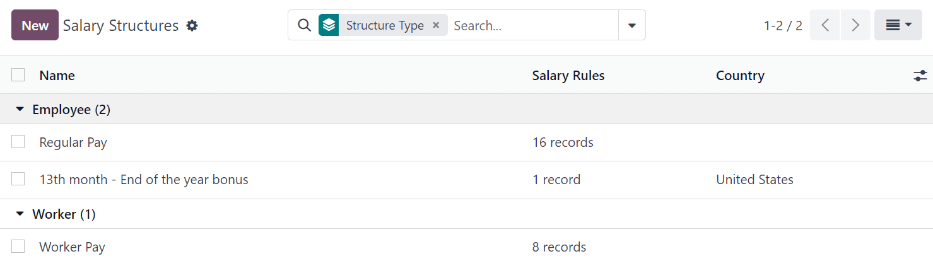
روی یک ساختار کلیک کنید تا قواعد حقوقودستمزد آن را مشاهده کنید. این قواعد نحوهٔ محاسبهٔ فیش حقوقی برای کارمند را تعریف میکنند.
توجه
پس از نصب یک بومیسازی حقوق و دستمزد، ساختارهای مربوطه نصب میشوند و در این فهرست ظاهر میشوند.
قواعد حقوقی
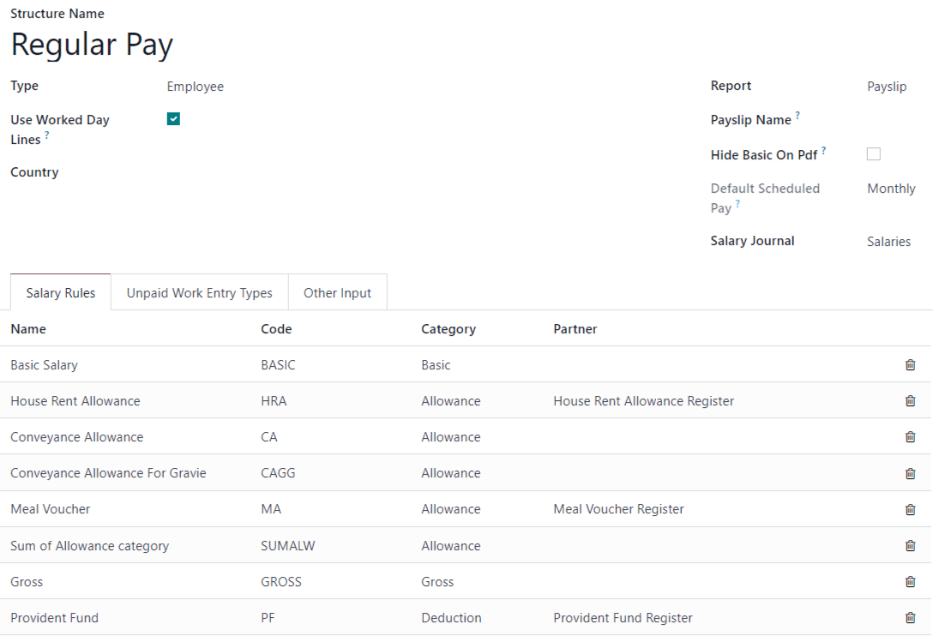
هر ساختار مجموعهای از قواعد حقوق دارد که برای محاسبهٔ مبالغ گوناگون در نظر گرفتهشده در پرداخت استفاده میشوند. این قواعد توسط بومیسازی پیکربندی میشوند و بر محاسبهٔ حقوقها تأثیر میگذارند.
هشدار
تغییر یا ایجاد قواعد باید فقط در صورت لزوم انجام شود.
برای مشاهدهٔ همهٔ قواعد، به بروید. روی یک ساختار (مانند Regular Pay) کلیک کنید تا همهٔ قواعد را مشاهده کنید.
افزودن یک قاعدهٔ جدید
برای ایجاد یک قاعدهٔ جدید، روی جدید کلیک کنید تا یک فرم خالی قواعد حقوقودستمزد بارگذاری شود. اطلاعات زیر را در نیمهٔ بالایی فرم وارد کنید:
نام قانون: یک نام برای قاعده وارد کنید. این نامی است که در فیش حقوقی نمایش داده میشود.
کد: کدی را که برای قاعدهٔ جدید استفاده میشود وارد کنید. این به حروف بزرگ و کوچک حساس است و بهعنوان شناسهٔ قاعده استفاده میشود. این فیلد الزامی است.
دستهبندی: با استفاده از منوی کشویی، دستهای را که قاعده برای آن اعمال میشود انتخاب کنید، یا یک دستهٔ جدید وارد کنید. دسته برای گروهبندی قواعد و دسترسی به مجموع کل آنها استفاده میشود.
ساختار حقوق و دستمزد: با استفاده از منوی کشویی، ساختار حقوقی را که قاعده برای آن اعمال میشود انتخاب کنید، یا یک ساختار جدید وارد کنید. این فیلد الزامی است.
ترتیب: عددی را وارد کنید که نشان میدهد قاعده چه زمانی، در توالی همهٔ قواعد دیگر، محاسبه میشود. قواعد بر اساس شمارهٔ توالی خود یکی پس از دیگری پردازش میشوند. قواعد با شمارهٔ توالی پایینتر ابتدا محاسبه میشوند و نتایج آنها میتواند توسط قواعد با شمارهٔ توالی بالاتر استفاده شود. این فیلد الزامی است.
بر روی فیش حقوق ظاهر میشود: تیک این کادر را بزنید تا قاعده روی PDF فیش حقوقی کارمند قابل مشاهده باشد.
Contributes to Employer Cost: تیک این کادر را بزنید تا قاعده هنگام محاسبهٔ هزینهٔ کارفرما یک فیش حقوقی لحاظ شود.
تب عمومی
بخشهای زیر از تب عمومی را تکمیل کنید. این پیکربندیها تعیین میکنند که قاعده چه زمانی و چگونه محاسبه میشود.
شرایط
شرایط بر اساس: با استفاده از منوی کشویی، انتخاب کنید که آیا قاعده بهعنوان یک خط در نمای فرم فیش حقوقی محاسبه و نمایش داده شود. یکی از گزینههای زیر را انتخاب کنید:
همیشه درست: قاعده همیشه محاسبه میشود. هیچ پیکربندی دیگری برای این بخش لازم نیست.
Salary Input: این یک مزیت پویا را به ساختار معرفی میکند. این بهعنوان یک فیلد در تب Payroll فرم Employee، تب Inputs فیش حقوقی، یا هر دو ظاهر میشود. مقدار این فیلد به مبلغ قاعده افزوده میشود. در صورت انتخاب، فیلدهای اضافی زیر ظاهر میشوند و باید پیکربندی شوند:
Input on: مشخص کنید که این فیلد کجا باید ظاهر شود و به کدام شیء باید تعلق داشته باشد، کارمند، فیش حقوق، یا هر دو. اگر هر دو انتخاب شوند، مقدار روی فیش حقوقی بهطور خودکار به مقدار رکورد کارمند پیشفرض میشود، اما میتوان آن را مستقیماً روی فیش حقوقی برای یک اجرای حقوق و دستمزد خاص بازنویسی کرد.
بخش: این چندین ورودی را در یک بخش قابل گسترش روی نمای فرم گروهبندی میکند. بهصورت پیشفرض تنها یک گزینه در دسترس است، Inputs.
عدد: روی دکمهٔ رادیویی مربوطه کلیک کنید تا نحوهٔ نمایش مزیت را تعیین کنید. گزینههای در دسترس عبارتاند از:
پولی: یک عدد همراه با ارز.
تعداد: یک عدد.
درصد: یک عدد همراه با علامت %.
چک باکس: مقادیر بولی را نشان میدهد.
Input Description: توضیح کوتاهی از زمان کاربردپذیری ورودی وارد کنید.
مقدار پیشفرض: مقدار پیشفرض را وارد کنید، یا یک مبلغ پولی، مقدار، یا درصد. این بر اساس آنچه برای عدد انتخاب شده تعیین میشود. در صورت لزوم، یک پسوند در فیلد سمت راست این مقدار اضافه کنید، مانند
per km.توجه
اگر چک باکس برای عدد انتخاب شود، این فیلد به Selected by Default تغییر میکند. تیک این کادر را بزنید تا قاعده بهصورت پیشفرض فعال باشد.
Depends On: قاعدهٔ دیگری را که یک ورودی حقوق دارد انتخاب کنید و از مقدار آن برای تعیین اینکه آیا این قاعده باید پنهان شود استفاده کنید.
ورودی دیگر: این را انتخاب کنید تا بررسی شود که آیا خط فیش حقوقیای با نوع یکسان وجود دارد. در صورت انتخاب، یک فیلد شرایظ دیگر ورودی ها ظاهر میشود. با استفاده از منوی کشویی، نوع ورودیای را که قاعده بر اساس آن است انتخاب کنید، مانند Deduction، Reimbursement و غیره.
عبارت پایتون: این را انتخاب کنید تا قاعده با استفاده از یک اسکریپت Python محاسبه شود. اسکریپت با استفاده از دیکشنری محلی ارزیابی میشود. سمت راست، Available variables و Output را فهرست میکند:
Available variables:
فیش حقوق: شیء
hr.payslip.کارمند: شیء
hr.employee.نگارش: شیء
hr.version.result_rules: یک دیکشنری شامل مبالغ، مقادیر، نرخها و مجموعهای قواعد (که قبلاً محاسبه شدهاند).
دستهبندیها: یک دیکشنری شامل دستههای قاعدهٔ حقوقِ محاسبهشده (مجموع مبلغ همهٔ قواعد متعلق به آن دسته):
مجموع: مجموع کل قاعده
مقدار: مبلغ قاعده
تعداد: مقدار قاعده
نرخ: نرخ قاعده
ytd: مقدار قاعده از ابتدای سال تا کنون
worked_days: یک دیکشنری شامل روزهای کارکردهٔ محاسبهشده، که در آن هر کلید یک کد نوع ورودی کاری است و هر مقدار یک شیء
worked_daysاست. این شیء شامل متغیرهای زیادی است که مهمترین آنها عبارتاند از:number_of_days: تعداد روزهای ثبتشده در مدت فیش حقوقی با این نوع ورودی کاری.
number_of_hours: تعداد ساعتهای ثبتشده در مدت فیش حقوقی با این نوع ورودی کاری.
is_paid: اینکه آیا این نوع ورودی کاری بهعنوان یک ورودی کاری بدونحقوق روی این ساختار فیش حقوقی افزوده شده است یا خیر.
inputs: یک دیکشنری شامل ورودیهای محاسبهشده که در آن کلید کد نوع ورودی دیگر است و مقدار مجموع خطوط ورودی فیش حقوقی با کد یکسان است.
Output:
نتیجه: اگر قاعده باید محاسبه شود، بولین True است، و در غیر این صورت False است.
دامنه: این گزینه را انتخاب کنید تا قاعده فقط در صورتی اعمال شود که با Applicability Domain پیکربندیشده مطابقت داشته باشد. Applicability Domain را که هنگام انتخاب، زیر این گزینه ظاهر میشود پیکربندی کنید.
محاسبه
این بخش مقدار نهایی قاعده را تعیین میکند که از مبلغ پایه، مقدار و نرخ تشکیل شده است. مجموع کل قاعده برابر است با total = amount * quantity * (rate/100).
مهم
اگر فیلد شرایط بر اساس روی Salary Input تنظیم شده باشد، این فیلد ظاهر نمیشود.
با استفاده از منوی کشویی، یکی از گزینههای زیر را برای فیلد نوع مقدار انتخاب کنید:
درصد (%): مقادیر را برای محاسبهٔ مجموع کل تعریف میکند. در صورت انتخاب، فیلدهای زیر را پیکربندی کنید:
درصد بر اساس: یک عبارت Python با استفاده از
localdictارزیابی میشود و مقدار آن به مبلغ قاعده اختصاص داده میشود.تعداد: یک عبارت Python با استفاده از
localdictارزیابی میشود و مقدار آن به مقدار قاعده اختصاص داده میشود.درصد (%): یک عدد اعشاری که به نرخ قاعده اختصاص داده میشود.
مبلغ ثابت: مبلغ و مقدار با نرخ ۱۰۰٪ تعریف میشود.
تعداد: یک عبارت Python با استفاده از
localdictارزیابی میشود و مقدار آن به مقدار قاعده اختصاص داده میشود.مبلغ ثابت: یک عدد اعشاری وارد کنید که به مبلغ قاعده اختصاص داده میشود.
ورودی دیگر: این را انتخاب کنید تا مبلغ قاعده از خطوط ورودی فیش حقوقی که همان نوع ورودی دیگر را با نرخ
100%و مقدار1.0دارند واکشی شود. در صورت انتخاب، یک فیلد مقدار ورودی دیگر در زیر آن ظاهر میشود. با استفاده از منوی کشویی، نوع ورودی را انتخاب کنید، مانند Deduction، انعام ها، یا هزینهها.کد پایتون: این نسخهٔ پیچیدهتر گزینهٔ درصد (%) است، که در آن یک اسکریپت کامل Python نوشته و سپس با استفاده از
localdictارزیابی میشود. این شامل فهرستی از Available variables و یک فهرست Output است.Available variables:
فیش حقوق: شیء hr.payslip
کارمند: شیء hr.employee
نگارش: شیء hr.version
result_rules: یک dict شامل مبالغ، مقادیر، نرخها و مجموعهای قواعد (که قبلاً محاسبه شدهاند)، که در آن کلید کد قاعده است و مقدار یک dict با کلیدهای زیر است:
مجموع: مجموع کل قاعده
مقدار: مبلغ قاعده
تعداد: مقدار قاعده
نرخ: نرخ قاعده
ytd: مقدار قاعده از ابتدای سال تا کنون
دستهبندیها: یک dict شامل دستههای قاعدهٔ حقوقِ محاسبهشده (مجموع مبلغ همهٔ قواعد متعلق به آن دسته) که در آن کلید کد دسته است و مقدار مجموع مقادیر کل قواعد است.
worked_days: یک dict شامل روزهای کارکردهٔ محاسبهشده که در آن کلید کد نوع ورودی کاری است و مقدار شیء
worked_daysاست که شامل متغیرهای زیادی است، اما مهمترین آنها عبارتاند از:number_of_days: تعداد روزهای ثبتشده در مدت فیش حقوقی با این نوع ورودی کاری.
number_of_hours: تعداد ساعتهای ثبتشده در مدت فیش حقوقی با این نوع ورودی کاری.
is_paid: تعیین میکند که آیا این نوع ورودی کاری بهعنوان یک ورودی کاری بدونحقوق روی این ساختار فیش حقوقی افزوده شده است یا خیر.
inputs: یک dict شامل ورودیهای محاسبهشده که در آن کلید* کد نوع ورودی دیگر است و مقدار مجموع خطوط ورودی فیش حقوقی با کد یکسان است.
Output:
نتیجه: float، مبلغ پایهٔ قاعده
result_rate: float، که بهصورت پیشفرض ۱۰۰.۰ (%) است
result_qty: float، مقدار، که بهصورت پیشفرض ۱ است
result_name: رشته، نام خط. این بهصورت پیشفرض فیلد نام قاعدهٔ حقوق است (مفید است اگر نام به چیزی که در قاعده محاسبه میشود وابسته است یا باید وابسته باشد).
مشارکت شرکت
با استفاده از منوی کشویی، شخص ثالث احتمالی دخیل در پرداخت حقوق به کارمندان را انتخاب کنید.
تب نمایش
این بخش ظاهر قاعده را روی PDF فیش حقوقی در دسترس کارمند تعیین میکند و زیباییشناسی قاعده را تعریف میکند.
ابتدا با استفاده از انتخابگر رنگ، یک رنگ برای قاعده انتخاب کنید. سپس تیک عنوان را بزنید تا فقط عنوان و توضیحات قاعدهٔ حقوق نمایش داده شود و هر مقدار عددی پنهان شود.
برای فعالسازی گزینهها، تیک Indented، Space Above، پررنگ، زیرخط و ایتالیک را بزنید.
در نهایت، یک توضیحات برای قاعده وارد کنید که زیر نام قاعده نمایش داده میشود.
تب حسابداری
این بخش تعیین میکند که قاعده چگونه بر ژورنالهای حسابداری مختلف تأثیر میگذارد و حقوق خالص برای کارمندان چگونه محاسبه میشود. فیلدهای زیر را در این بخش پیکربندی کنید:
حساب بدهی: با استفاده از منوی کشویی، حساب بدهکار را برای قاعده انتخاب کنید.
حساب بستانکاری: با استفاده از منوی کشویی، حساب بستانکار را برای قاعده انتخاب کنید.
Split on names: این گزینه را فعال کنید تا اسناد حسابداری این قاعده بر اساس نام خط فیش حقوقی تقسیم شوند.
Excluded from Net: این تیک را بزنید تا محاسبات قاعده از قاعدهٔ حقوق خالص در اسناد ژورنال مستثنی شود. یک حساب بدهکار و بستانکار مشخص باید تنظیم شود تا بهطور مستقل طبقهبندی شود.
Set employee on account line: این تیک را بزنید تا نام کارمند روی اقلام ژورنال قابل مشاهده باشد.
مهم
این تب فقط در صورت نصب اپلیکیشن حسابداری در دسترس است.
پارامترهای قاعده
پارامترهای قاعده به Odoo میگویند که چگونه هر خط از یک فیش حقوقی را محاسبه کند. برای مشاهدهٔ پارامترهای قاعدهٔ پیکربندیشده، به بروید.
همهٔ پارامترهای قاعده نمایش داده میشوند. روی یک پارامتر قاعدهٔ منفرد کلیک کنید تا جزئیات را مشاهده کنید.
هر پارامتر قاعده نام قاعده، کد، زمانی که قاعده فعال است و مقدار پارامتر را نمایش میدهد.
Example
پارامترهای قاعده برای پرداخت اضافهکاری به Odoo میگویند که کارمندان هنگام کار بیش از ۴۰ ساعت، یک و نیم برابر دریافت میکنند.
سایر انواع ورودی
هنگام ایجاد فیشهای حقوقی، گاهی لازم است ورودیهای دیگری برای شرایط خاص مانند انعام، کمیسیون، مخارج یا کسورات اضافه شود. این ورودیهای دیگر را میتوان با رفتن به یافت.
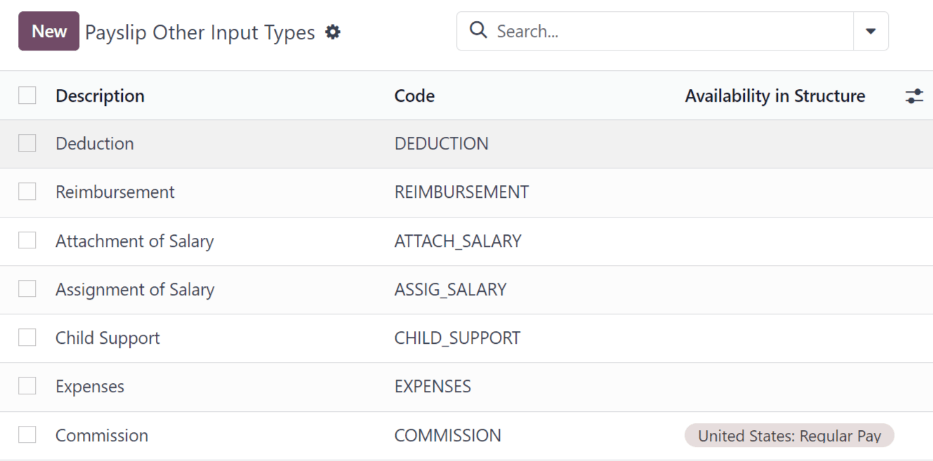
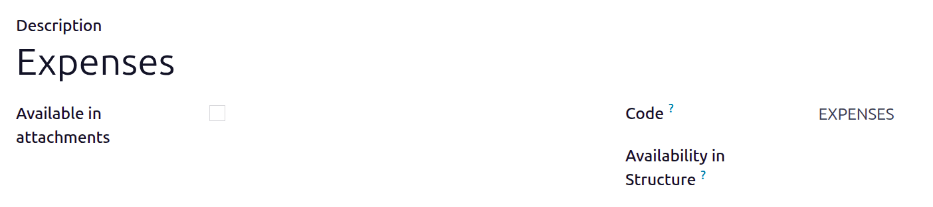
اگر نوع ورودی جدیدی موردنیاز است که در فهرست ظاهر نمیشود، روی دکمهٔ جدید کلیک کنید تا یک نوع ورودی جدید ایجاد شود. توضیحات، کد را وارد کنید و در فیلد در دسترس بودن در ساختار انتخاب کنید که برای کدام ساختار اعمال میشود.
اگر ورودی باید یک ضمیمهٔ حقوقی باشد، تیک در پیوستها موجود است را بزنید.
مهم
کد در قواعد حقوق برای محاسبهٔ فیشهای حقوقی استفاده میشود. اگر فیلد در دسترس بودن در ساختار خالی گذاشته شود، نشان میدهد که نوع ورودی جدید برای همهٔ فیشهای حقوقی در دسترس است و مختص یک ساختار خاص نیست.