
پرو
ماژولها
برای استفاده از تمام ویژگیهای فعلی بومیسازی پرو، ماژولهای زیر را نصب کنید.
نام |
نام فنی |
توضیحات |
|---|---|---|
Peru - Accounting |
|
ویژگیهای حسابداری را برای بومیسازی پرو اضافه میکند که حداقل پیکربندی موردنیاز برای فعالیت یک شرکت در پرو و تحت مقررات و دستورالعملهای SUNAT را نشان میدهد. عناصر اصلی موجود در این ماژول عبارتاند از دفتر حسابها، مالیاتها و انواع سند. |
Peru - E-invoicing |
|
تمام الزامات فنی و کارکردی برای تولید و دریافت آنلاین فاکتورهای الکترونیکی بر اساس مقررات SUNAT را شامل میشود. |
Peru - Accounting Reports |
|
گزارشهای مالی زیر را شامل میشود:
|
Peruvian - Electronic Delivery Note |
|
راهنمای تحویل (Guía de Remisión) را اضافه میکند که بهعنوان مدرکی برای اثبات ارسال کالا بین نقطهٔ A و B موردنیاز است. راهنمای تحویل تنها زمانی قابل ایجاد است که یک سفارش تحویل اعتبارسنجی شده باشد. |
Peru - Stock Reports |
|
گزارشهای PLE را برای ثبت دائمی موجودی به واحدهای فیزیکی و ثبت دائمی موجودی ارزشگذاریشده فعال میکند. |
Peruvian eCommerce |
|
نوع شناسایی را در فرمهای پرداخت تجارت الکترونیک و قابلیت تولید فاکتورهای الکترونیکی را فعال میکند. |
Peruvian - Point of Sale with PE Doc |
|
امکان ویرایش اطلاعات مالیاتی مخاطب از صندوق POS را برای تولید فاکتورها و بازپرداختهای الکترونیکی فراهم میکند. |
توجه
Odoo بهطور خودکار پکیج مناسب برای شرکت را بر اساس کشور انتخابشده در ایجاد پایگاه داده نصب میکند.
ماژول Peruvian - Electronic Delivery Guide برای نصب به اپلیکیشن انبار وابسته است.
پیکربندی
نصب ماژولهای بومیسازی پرو
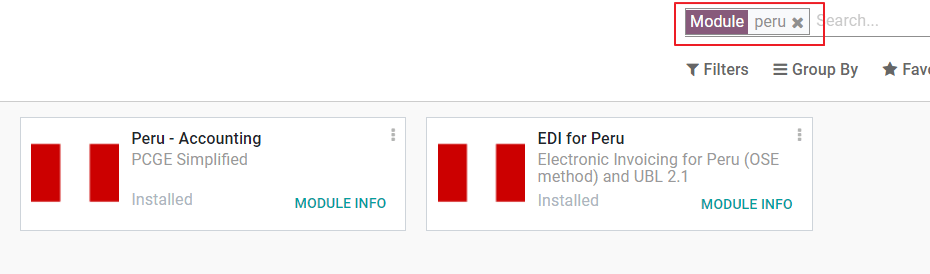
به اپلیکیشنها بروید و عبارت Peru را جستجو کنید، سپس روی نصب در ماژول Peru EDI کلیک کنید. این ماژول به Peru - Accounting وابستگی دارد. در صورتی که این ماژول آخر نصب نشده باشد، Odoo آن را بهصورت خودکار همراه با EDI نصب میکند.
توجه
هنگامی که یک پایگاه داده را از ابتدا با انتخاب پرو بهعنوان کشور نصب میکنید، Odoo بهصورت خودکار ماژول پایه را نصب میکند: Peru - Accounting.
پیکربندی شرکت شما
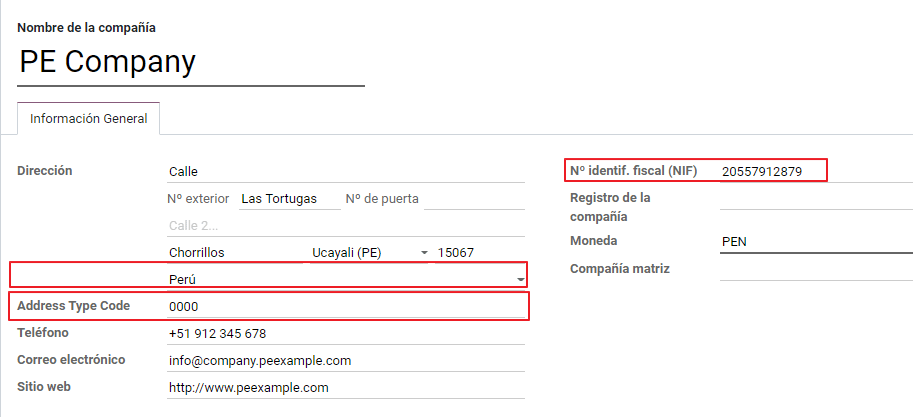
علاوه بر اطلاعات پایه در شرکت، باید پرو را بهعنوان کشور تنظیم کنیم؛ این کار برای عملکرد صحیح فاکتور الکترونیکی ضروری است. فیلد Address Type Code نشاندهندهٔ کد مؤسسهای است که SUNAT هنگام ثبت RUC (ثبتنام مؤدی منحصربهفرد) شرکتها به آنها اختصاص میدهد:
نکته
در صورتی که کد نوع آدرس نامشخص است، میتوانید آن را روی مقدار پیشفرض تنظیم کنید: 0000. توجه داشته باشید که اگر مقدار نادرستی وارد شود، اعتبارسنجی فاکتور الکترونیکی ممکن است با خطا مواجه شود.
توجه
NIF باید مطابق با قالب RUC تنظیم شود.
دفتر حسابها
دفتر حسابها بهصورت پیشفرض بهعنوان بخشی از مجموعهدادههای موجود در ماژول بومیسازی نصب میشود و حسابها بهصورت خودکار در موارد زیر نگاشت میشوند:
مالیاتها
حساب پرداختنی پیشفرض.
حساب دریافتنی پیشفرض
دفتر حسابها برای پرو بر اساس بهروزترین نسخهٔ PCGE است که در چندین دسته گروهبندی شده و با حسابداری NIIF سازگار است.
تنظیمات حسابداری
پس از نصب ماژولها و تنظیم اطلاعات پایهٔ شرکت، باید عناصر موردنیاز برای فاکتور الکترونیکی را پیکربندی کنید. برای این کار، به بروید.
مفاهیم پایه
در ادامه برخی اصطلاحات ضروری در بومیسازی پرو آمده است:
EDI: تبادل الکترونیکی داده، که در اینجا به فاکتور الکترونیکی اشاره دارد.
SUNAT: سازمانی است که گمرک و مالیات را در پرو اجرا میکند.
OSE: اپراتور خدمات الکترونیکی، تعریف OSE توسط SUNAT.
CDR: گواهی دریافت (Constancia de Recepción).
اعتبارنامههای SOL: Sunat Operaciones en Línea. نام کاربری و رمز عبور توسط SUNAT ارائه میشوند و دسترسی به سامانههای عملیات آنلاین را فراهم میکنند.
ارائهدهندهٔ امضا
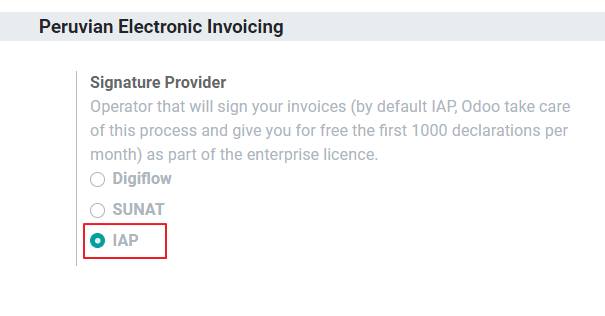
بهعنوان بخشی از الزامات فاکتور الکترونیکی در پرو، شرکت شما باید یک ارائهدهندهٔ امضا انتخاب کند که فرایند امضای سند را بر عهده میگیرد و پاسخ اعتبارسنجی SUNAT را مدیریت میکند. Odoo سه گزینه ارائه میدهد:
IAP (خرید درونبرنامهای Odoo)
Digiflow
SUNAT
لطفاً برای بررسی جزئیات و ملاحظات هر گزینه به بخشهای زیر مراجعه کنید.
IAP (خرید درونبرنامهای Odoo)
این گزینهٔ پیشفرض و پیشنهادی است، با توجه به اینکه گواهی دیجیتال بهعنوان بخشی از خدمات ارائه میشود.
IAP چیست؟
این یک سرویس امضا است که مستقیماً توسط Odoo ارائه میشود؛ این سرویس فرایند زیر را بر عهده میگیرد:
گواهی فاکتور الکترونیکی را فراهم میکند، بنابراین نیازی نیست خودتان آن را تهیه کنید.
سند را به OSE، که در این مورد Digiflow است، ارسال میکند.
اعتبارسنجی OSE و CDR را دریافت میکند.
چگونه کار میکند؟
این سرویس برای پردازش اسناد الکترونیکی شما به اعتبار نیاز دارد. Odoo در پایگاهدادههای جدید ۱۰۰۰ اعتبار رایگان ارائه میدهد. پس از مصرف این اعتبارها، باید یک بستهٔ اعتبار خریداری کنید.
اعتبارها |
EUR |
|---|---|
1000 |
22 |
5000 |
110 |
10,000 |
220 |
20,000 |
440 |
اعتبارها بهازای هر سندی که به OSE ارسال میشود مصرف میشوند.
مهم
اگر با خطای اعتبارسنجی مواجه شوید و سند نیاز به ارسال مجدد داشته باشد، یک اعتبار اضافی محاسبه خواهد شد. بنابراین، بسیار مهم است که پیش از ارسال سند خود به OSE، صحت تمام اطلاعات را بررسی کنید.
چه کاری باید انجام دهید؟
در Odoo، پس از فعال شدن قرارداد سازمانی شما و آغاز کار در محیط تولید، باید پس از مصرف ۱۰۰۰ اعتبار اول، اعتبار بخرید.
از آنجا که Digiflow همان OSE مورد استفاده در IAP است، باید آن را بهعنوان OSE رسمی شرکت خود در وبسایت SUNAT ثبت کنید. این فرایند سادهای است. برای اطلاعات بیشتر، لطفاً راهنمای ثبت OSE را بررسی کنید.
برای ثبت Digiflow بهعنوان PSE مجاز، لطفاً راهنمای ثبت PSE را بررسی کنید.
Digiflow
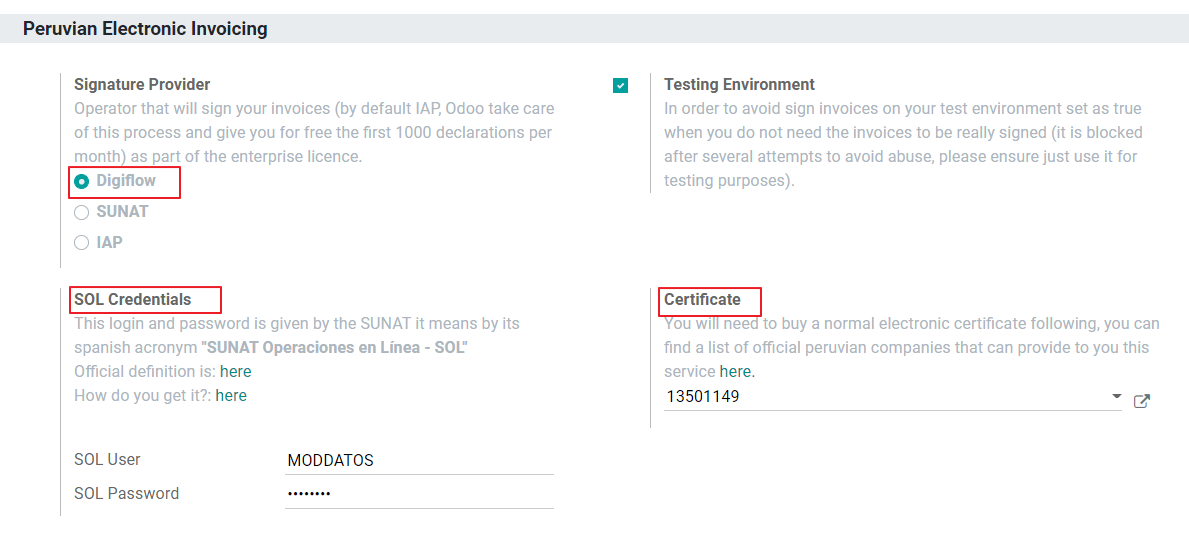
این گزینه میتواند بهعنوان یک جایگزین استفاده شود؛ بهجای استفاده از خدمات IAP میتوانید اعتبارسنجی سند خود را مستقیماً به Digiflow ارسال کنید. در این حالت باید موارد زیر را در نظر بگیرید:
گواهی دیجیتال خود را بخرید: برای جزئیات بیشتر دربارهٔ فهرست رسمی فروشندگان و فرایند تهیهٔ آن، لطفاً به گواهیهای دیجیتال SUNAT مراجعه کنید.
یک قرارداد خدمات را مستقیماً با Digiflow امضا کنید.
اطلاعات احراز هویت SOL خود را وارد کنید.
SUNAT
در صورتی که شرکت شما بخواهد مستقیماً با SUNAT امضا کند، امکان انتخاب این گزینه در پیکربندی شما وجود دارد. در این حالت باید موارد زیر را در نظر بگیرید: - فرایند صدور گواهی SUNAT را به تأیید برسانید.
گواهی دیجیتال خود را بخرید: برای جزئیات بیشتر دربارهٔ فهرست رسمی فروشندگان و فرایند تهیهٔ آن، لطفاً به گواهیهای دیجیتال SUNAT مراجعه کنید.
اطلاعات احراز هویت SOL خود را وارد کنید.
مهم
هنگام استفاده از اتصال مستقیم با SUNAT، کاربر SOL باید با RUT شرکت + شناسهٔ کاربر تنظیم شود. مثال: 20121888549JOHNSMITH
محیط آزمایشی
Odoo یک محیط آزمایشی فراهم میکند که میتواند پیش از ورود شرکت شما به محیط تولید فعال شود.
هنگام استفاده از محیط آزمایشی و امضای IAP، نیازی به خرید اعتبار آزمایشی برای تراکنشهای خود ندارید، زیرا همهٔ آنها بهصورت پیشفرض اعتبارسنجی میشوند.
نکته
بهصورت پیشفرض، پایگاههای داده برای کار در محیط تولید تنظیم شدهاند؛ در صورت نیاز، حتماً حالت آزمایشی را فعال کنید.
گواهینامه
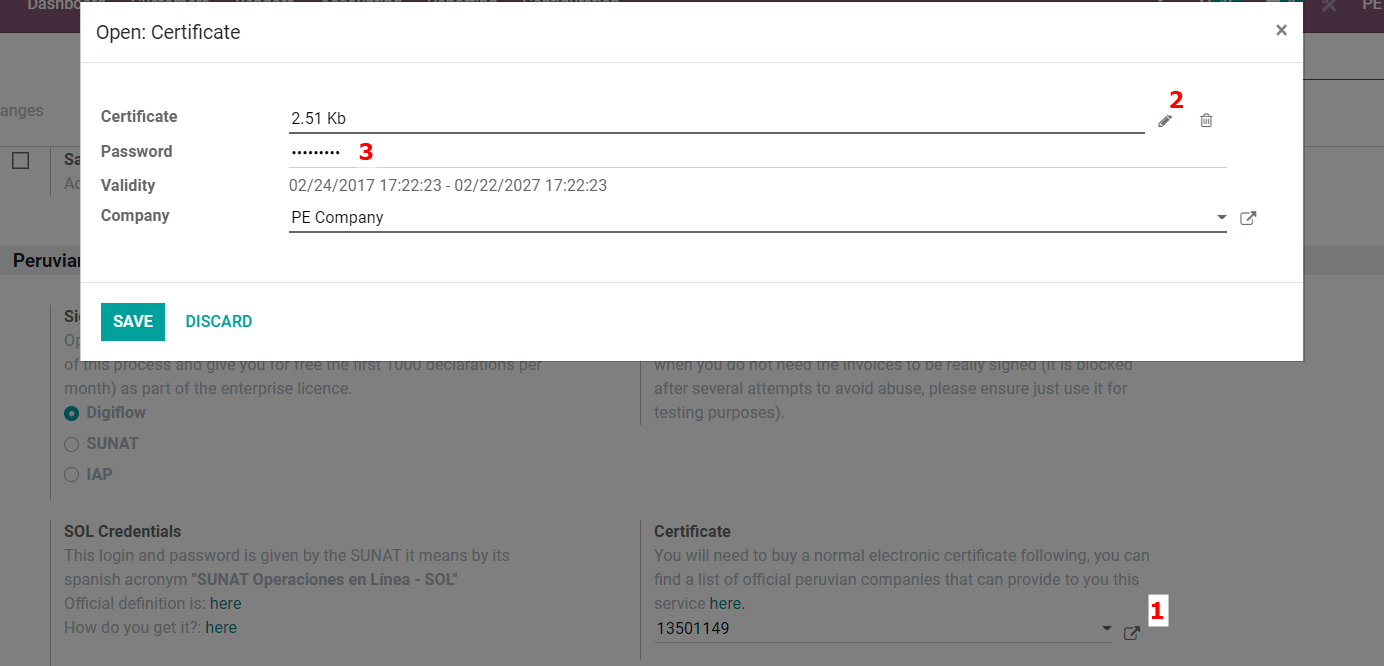
در صورتی که از Odoo IAP استفاده نمیکنید، برای تولید امضای فاکتور الکترونیکی، یک گواهی دیجیتال با پسوند .pfx لازم است. به این بخش بروید و فایل و گذرواژهٔ خود را بارگذاری کنید.
چند ارزی
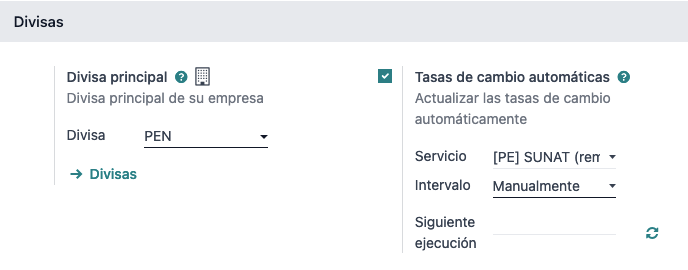
نرخ رسمی تبدیل ارز در پرو توسط SUNAT ارائه میشود. Odoo میتواند مستقیماً به خدمات آن متصل شود و نرخ ارز را بهصورت خودکار یا دستی دریافت کند.
برای اطلاعات بیشتر دربارهٔ چندارزی، لطفاً به بخش بعدی در مستندات ما مراجعه کنید.
پیکربندی دادههای اصلی
مالیاتها
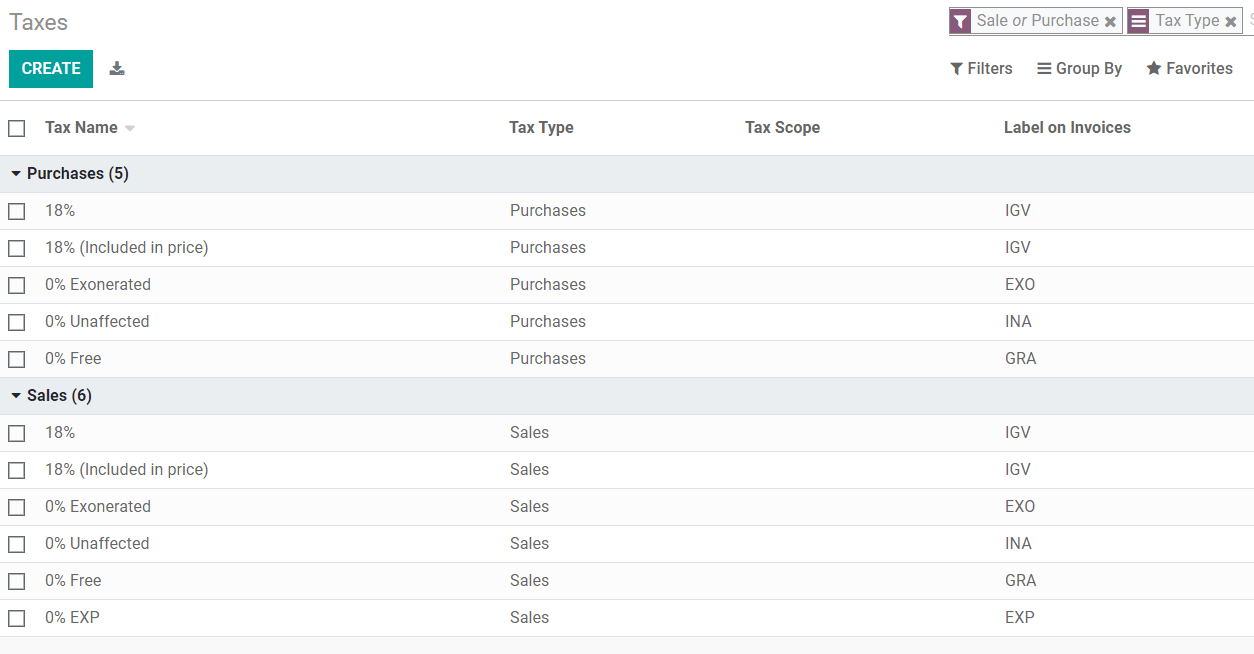
بهعنوان بخشی از ماژول بومیسازی، مالیاتها بهصورت خودکار به همراه حساب مالی مرتبط و پیکربندی فاکتور الکترونیکی آنها ایجاد میشوند.
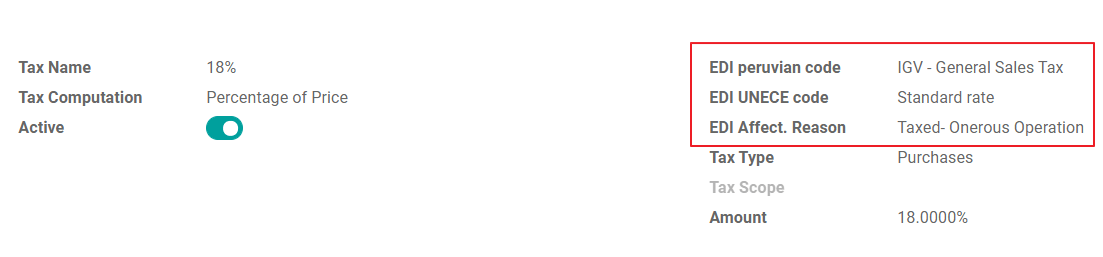
پیکربندی EDI
بهعنوان بخشی از پیکربندی مالیاتها، سه فیلد جدید برای فاکتور الکترونیکی لازم است؛ مالیاتهایی که بهصورت پیشفرض ایجاد شدهاند این دادهها را در خود دارند، اما در صورتی که مالیات جدیدی ایجاد میکنید، حتماً این فیلدها را تکمیل کنید:
موقعیتهای مالی
هنگام نصب بومیسازی پرو، دو موقعیت مالی اصلی بهصورت پیشفرض گنجانده میشوند.
Extranjero - Exportación: این موقعیت مالی را برای تراکنشهای صادراتی روی مشتریان تنظیم کنید.
Local Peru: این موقعیت مالی را روی مشتریان محلی تنظیم کنید.
انواع سند
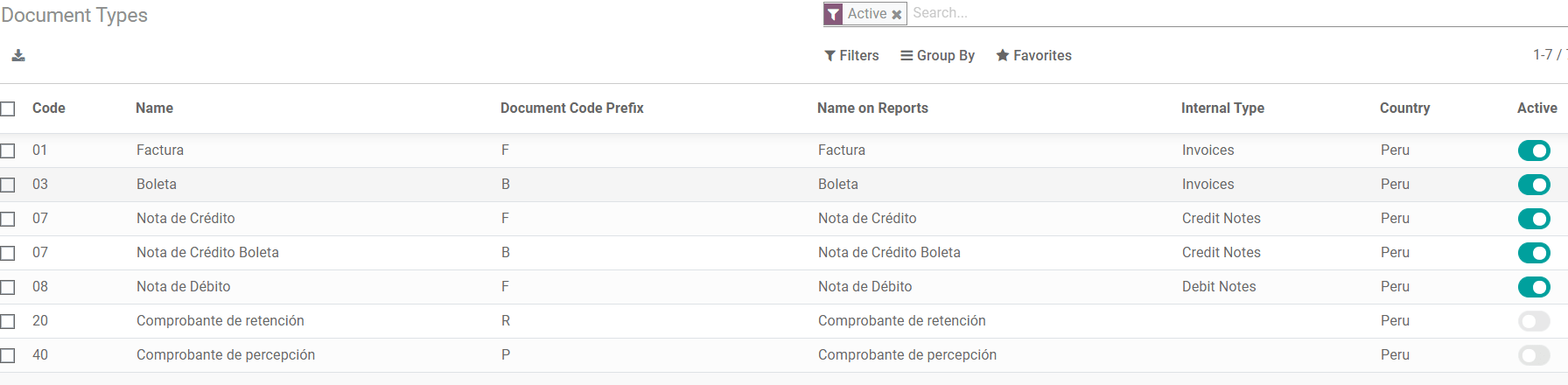
در برخی از کشورهای آمریکای لاتین، از جمله پرو، برخی از تراکنشهای حسابداری مانند فاکتورها و صورتحسابهای فروشنده بر اساس انواع سند که توسط مراجع مالیاتی دولت تعریف شدهاند، در این مورد توسط SUNAT، طبقهبندی میشوند.
هر نوع سند میتواند در هر ژورنالی که به آن اختصاص داده میشود یک توالی منحصربهفرد داشته باشد. بهعنوان بخشی از بومیسازی، نوع سند شامل کشوری است که سند در آن قابل اعمال است؛ این دادهها هنگام نصب ماژول بومیسازی بهصورت خودکار ایجاد میشوند.
اطلاعات موردنیاز برای انواع سند بهصورت پیشفرض گنجانده شده است، بنابراین کاربر نیازی به تکمیل چیزی در این نما ندارد:
هشدار
در حال حاضر اسناد پشتیبانیشده در فاکتورهای مشتری عبارتاند از: فاکتور، Boleta، یادداشت بدهکار و یادداشت بستانکار.
ژورنالها
هنگام ایجاد ژورنالهای فروش، علاوه بر فیلدهای استاندارد ژورنالها، اطلاعات زیر نیز باید تکمیل شود:
استفاده از اسناد
این فیلد برای تعیین اینکه آیا ژورنال از انواع سند استفاده میکند یا خیر، بهکار میرود. این فیلد فقط برای ژورنالهای خرید و فروش قابل اعمال است، زیرا آنها ژورنالهایی هستند که میتوانند به مجموعههای مختلف انواع سند موجود در پرو مرتبط شوند. بهصورت پیشفرض، تمام ژورنالهای فروش ایجادشده از اسناد استفاده میکنند.
تبادل دادههای الکترونیکی
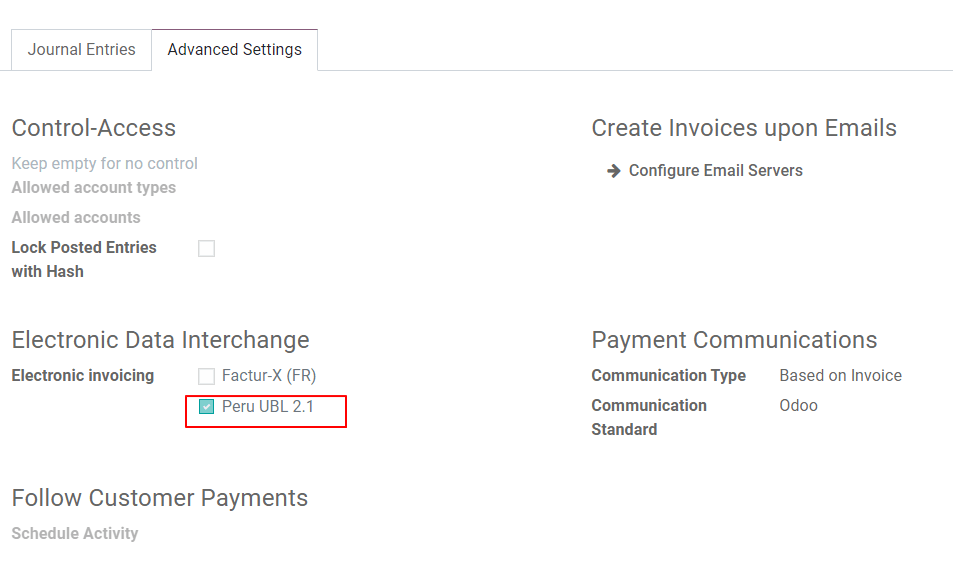
این بخش نشان میدهد که کدام گردشکار EDI در فاکتور استفاده میشود؛ برای پرو باید «Peru UBL 2.1» را انتخاب کنیم.
هشدار
بهصورت پیشفرض، مقدار Factur-X (FR) همیشه نمایش داده میشود؛ مطمئن شوید که میتوانید تیک آن را بهصورت دستی بردارید.
شریک
نوع شناسایی و مالیات بر ارزش افزوده
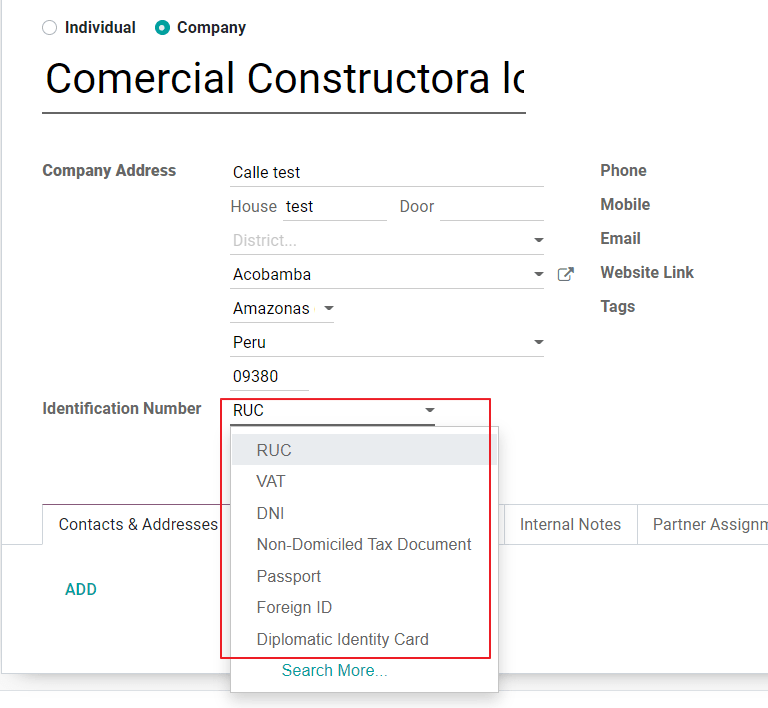
بهعنوان بخشی از بومیسازی پرو، انواع شناسایی تعریفشده توسط SUNAT اکنون در فرم شریک در دسترس هستند؛ این اطلاعات برای بیشتر تراکنشها چه در شرکت فرستنده و چه در مشتری ضروری است، حتماً این اطلاعات را در رکوردهای خود تکمیل کنید.
محصول
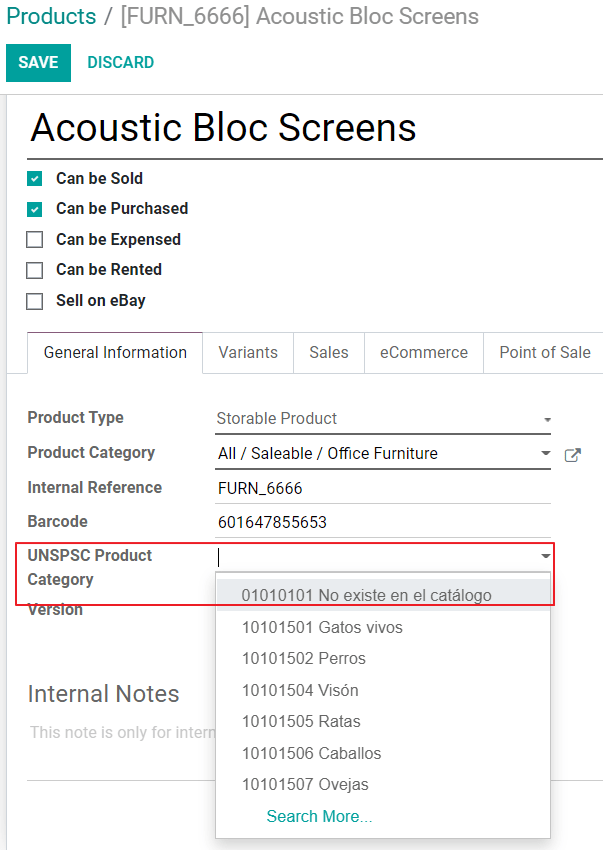
علاوه بر اطلاعات پایه در محصولات شما، برای بومیسازی پرو، کد UNSPC روی محصول مقداری الزامی است که باید پیکربندی شود.
استفاده و آزمایش
فاکتور مشتری
عناصر EDI
پس از پیکربندی دادههای اصلی خود، فاکتورها میتوانند از سفارش فروش شما یا بهصورت دستی ایجاد شوند. علاوه بر اطلاعات پایهٔ فاکتور که در صفحهٔ ما دربارهٔ فرایند صدور فاکتور شرح داده شده است، چند فیلد بهعنوان بخشی از EDI پرو لازم است:
نوع سند: مقدار پیشفرض «Factura Electronica» است، اما در صورت نیاز میتوانید نوع سند را بهصورت دستی تغییر دهید و برای مثال Boleta را انتخاب کنید.
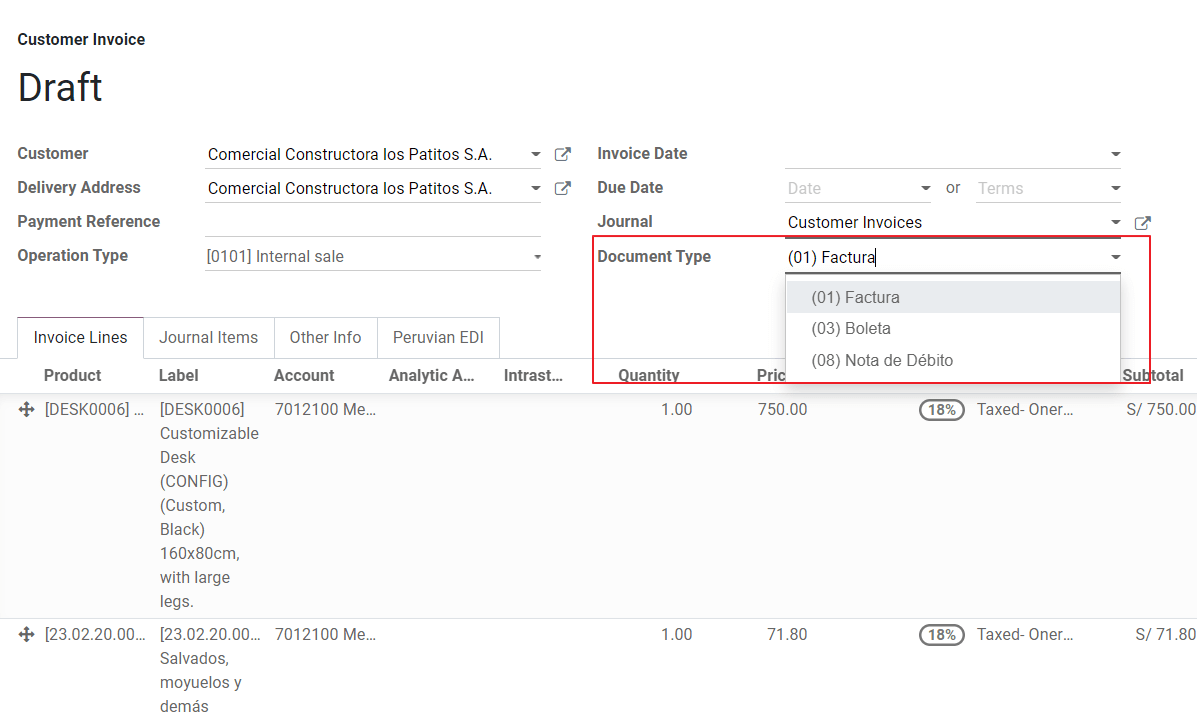
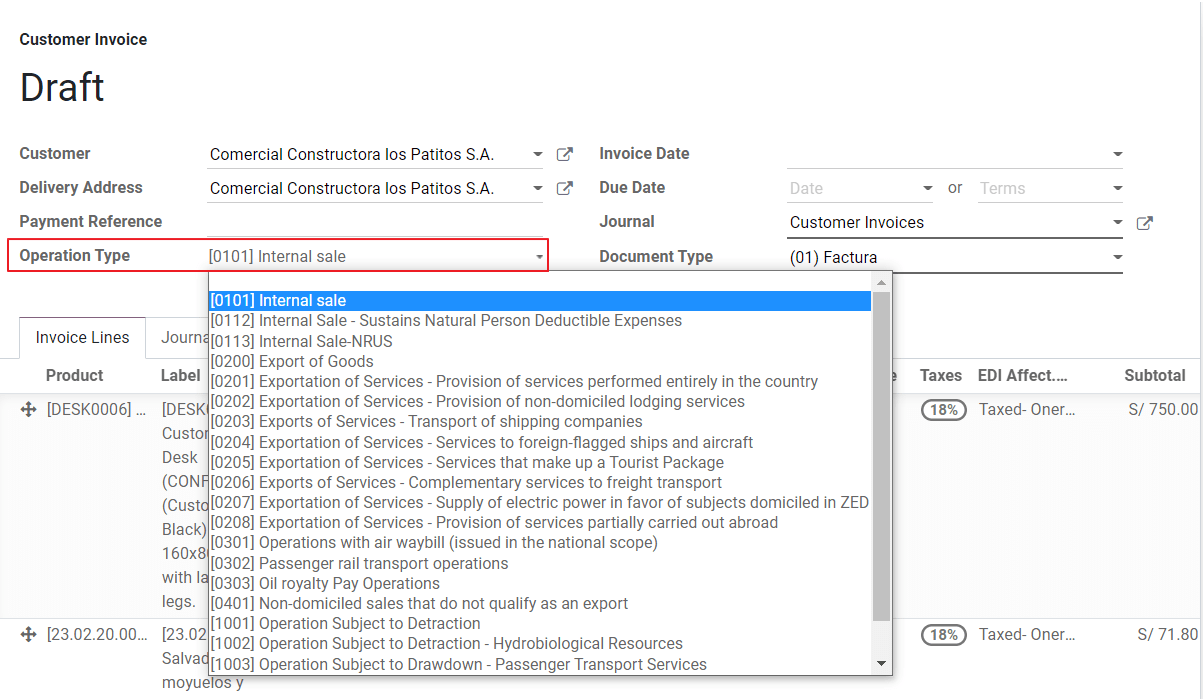
نوع عملیات: این مقدار برای فاکتور الکترونیکی الزامی است و نوع تراکنش را نشان میدهد؛ مقدار پیشفرض «Internal Sale» است، اما در صورت نیاز میتوان مقدار دیگری را بهصورت دستی انتخاب کرد، برای مثال صادرات کالا.
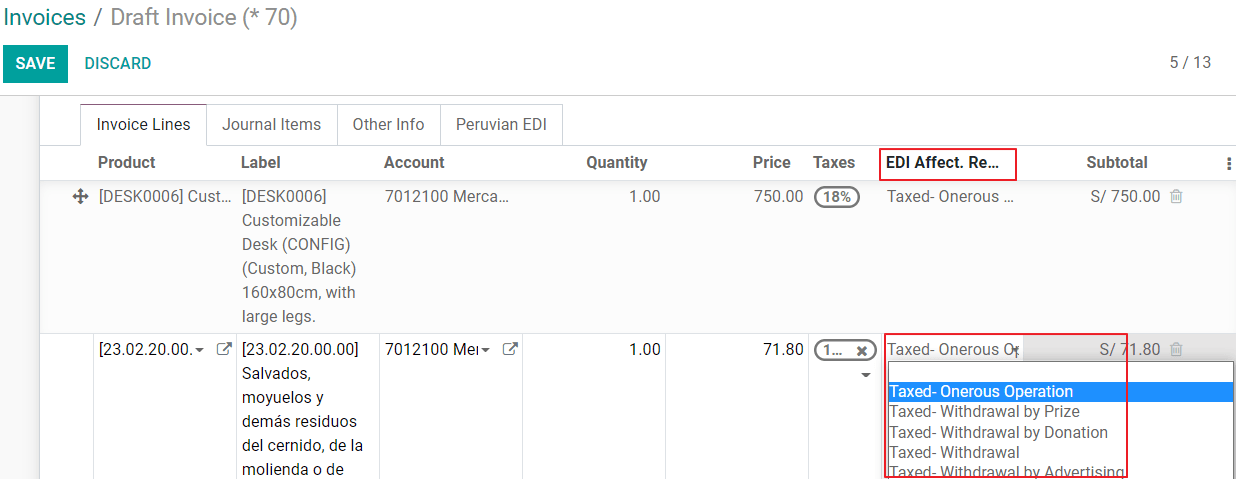
EDI Affectation Reason: در سطرهای فاکتور، علاوه بر مالیات، فیلدی به نام «EDI Affectation Reason» وجود دارد که دامنهٔ مالیات را بر اساس فهرست SUNAT نمایشدادهشده تعیین میکند. تمام مالیاتهایی که بهصورت پیشفرض بارگذاری شدهاند با یک دلیل تأثیرگذاری EDI پیشفرض مرتبط هستند؛ در صورت نیاز میتوانید هنگام ایجاد فاکتور، مورد دیگری را بهصورت دستی انتخاب کنید.
اعتبارسنجی فاکتور
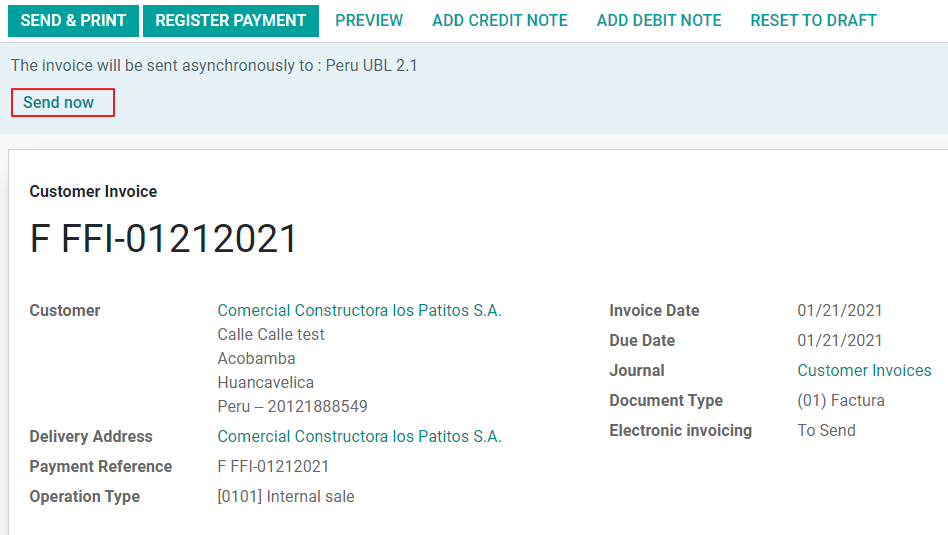
پس از بررسی صحت تمام اطلاعات در فاکتور خود، میتوانید برای اعتبارسنجی آن اقدام کنید. این اقدام سند حسابداری را ثبت میکند و گردشکار فاکتور الکترونیکی را برای ارسال آن به OSE و SUNAT فعال میکند. پیام زیر در بالای فاکتور نمایش داده میشود:
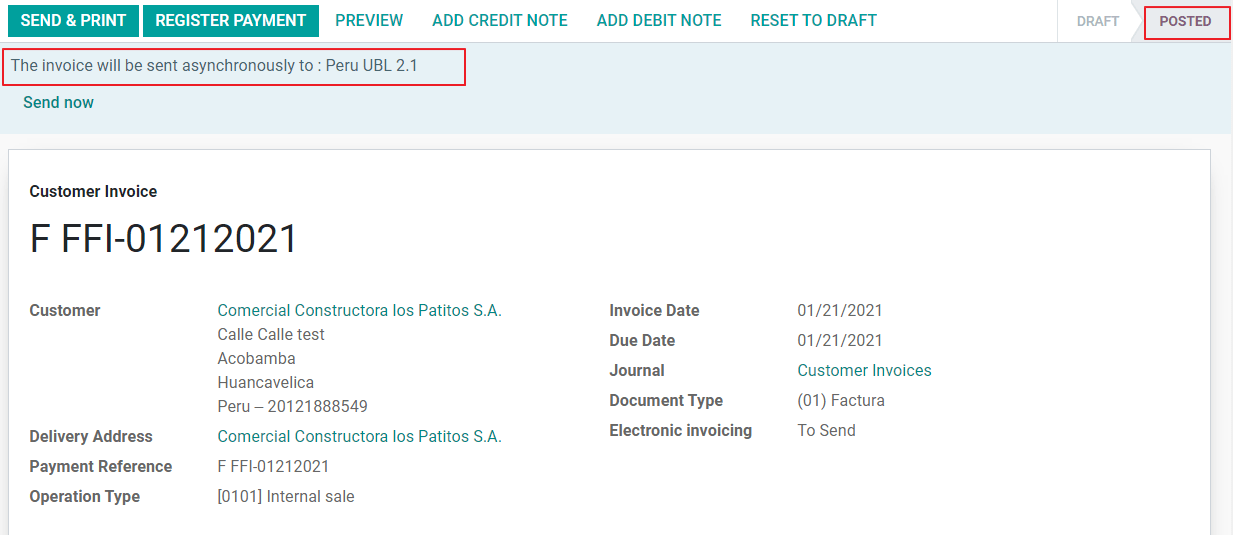
ناهمگام به این معناست که سند پس از ثبت فاکتور بهصورت خودکار ارسال نمیشود.
وضعیت فاکتور الکترونیکی
To be Sent: نشان میدهد که سند آمادهٔ ارسال به OSE است؛ این کار میتواند یا بهصورت خودکار توسط Odoo با یک cron که هر ساعت اجرا میشود انجام شود، یا کاربر میتواند با کلیک روی دکمهٔ «Sent now» آن را بلافاصله ارسال کند.
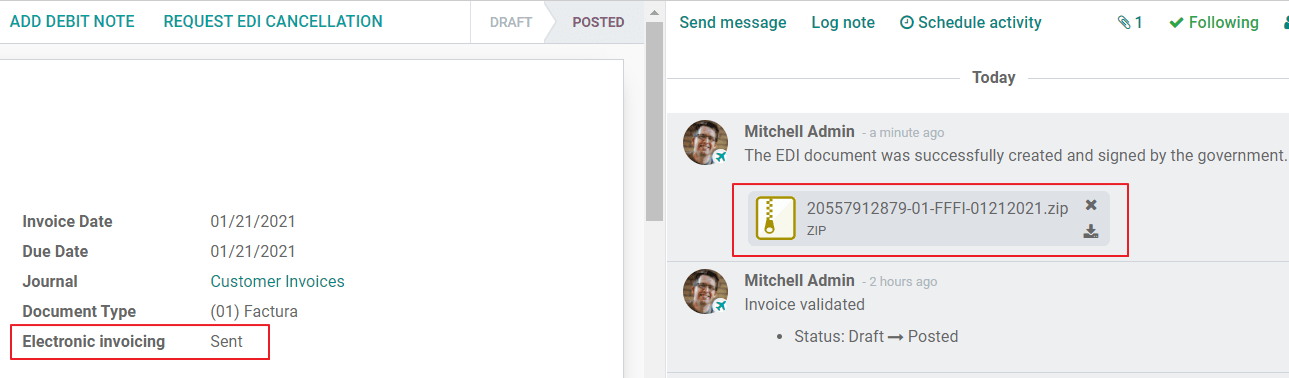
Sent: نشان میدهد که سند به OSE ارسال شده و با موفقیت اعتبارسنجی شده است. بهعنوان بخشی از اعتبارسنجی، یک فایل ZIP دانلود میشود و پیامی در چتر ثبت میشود که اعتبارسنجی صحیح دولتی را نشان میدهد.
در صورت وجود خطای اعتبارسنجی، وضعیت فاکتور الکترونیکی در حالت «To be sent» باقی میماند تا اصلاحات انجام شود و فاکتور دوباره ارسال شود.
هشدار
هر بار که سندی را برای اعتبارسنجی ارسال میکنید، یک اعتبار مصرف میشود؛ به این معنا که اگر خطایی در فاکتوری شناسایی شود و آن را یکبار دیگر ارسال کنید، در مجموع دو اعتبار مصرف میشود.
خطاهای رایج
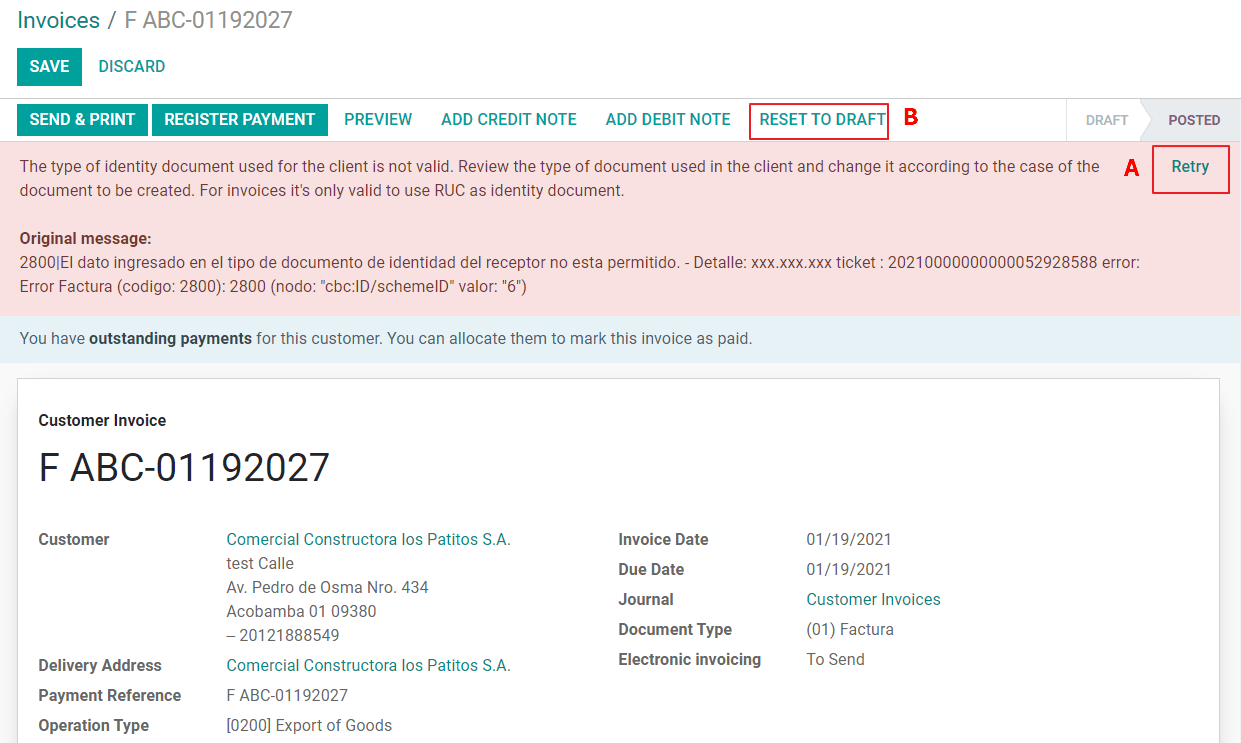
دلایل متعددی پشت رد شدن از سوی OSE یا SUNAT وجود دارد؛ هنگامی که این اتفاق میافتد، Odoo پیامی در بالای فاکتور ارسال میکند که جزئیات خطا و در رایجترین موارد راهنمایی برای رفع مسئله را نشان میدهد.
اگر خطای اعتبارسنجی دریافت شود، دو گزینه دارید:
در صورتی که خطا مربوط به دادههای اصلی روی شریک، مشتری یا مالیاتها باشد، میتوانید بهسادگی تغییر را روی رکورد اعمال کنید (برای مثال نوع شناسایی مشتری) و پس از انجام آن، روی دکمهٔ Retry کلیک کنید.
اگر خطا مربوط به برخی از دادههای ثبتشده مستقیماً روی فاکتور باشد (نوع عملیات، دادههای ناقص در سطرهای فاکتور)، راهحل صحیح این است که فاکتور را به حالت پیشنویس بازنشانی کنید، تغییرات را اعمال کنید و سپس فاکتور را دوباره برای اعتبارسنجی مجدد به SUNAT ارسال کنید.
برای جزئیات بیشتر، لطفاً به خطاهای رایج در SUNAT مراجعه کنید.
گزارش PDF فاکتور
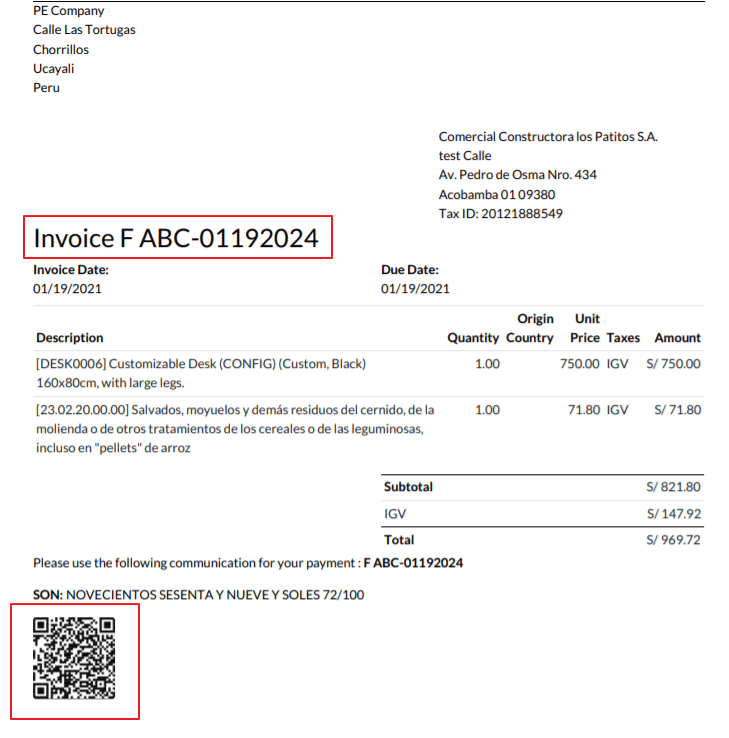
پس از پذیرش و اعتبارسنجی فاکتور توسط SUNAT، گزارش PDF فاکتور قابل چاپ است. این گزارش شامل یک کد QR است که نشان میدهد فاکتور یک سند مالیاتی معتبر است.
اعتبارهای IAP
IAP الکترونیکی Odoo ۱۰۰۰ اعتبار رایگان ارائه میدهد؛ پس از مصرف این اعتبارها در پایگاه دادهٔ تولید شما، شرکت شما باید برای پردازش تراکنشهای خود اعتبار جدید بخرد.
هنگامی که اعتبارهای شما تمام شود، یک برچسب قرمز در بالای فاکتور نمایش داده میشود که نشان میدهد اعتبارهای اضافی لازم است؛ میتوانید با دسترسی به پیوند ارائهشده در پیام، بهسادگی آنها را بخرید.
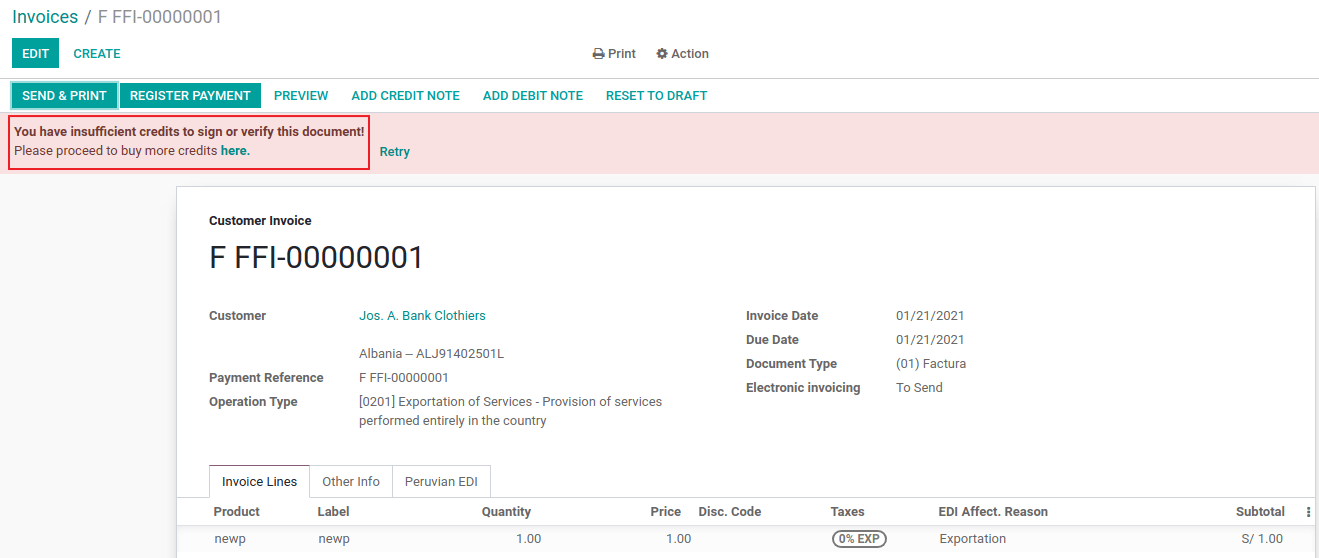
خدمت IAP شامل بستههایی با قیمتگذاری متفاوت بر اساس تعداد اعتبارها است. فهرست قیمت در IAP همیشه به یورو (EUR) نمایش داده میشود.
موارد استفادهٔ خاص
فرایند لغو
برخی سناریوها به لغو فاکتور نیاز دارند، برای مثال هنگامی که فاکتوری بهاشتباه ایجاد شده باشد. اگر فاکتور قبلاً ارسال و توسط SUNAT اعتبارسنجی شده باشد، روش صحیح ادامهٔ کار، کلیک روی دکمهٔ Request Cancellation است:
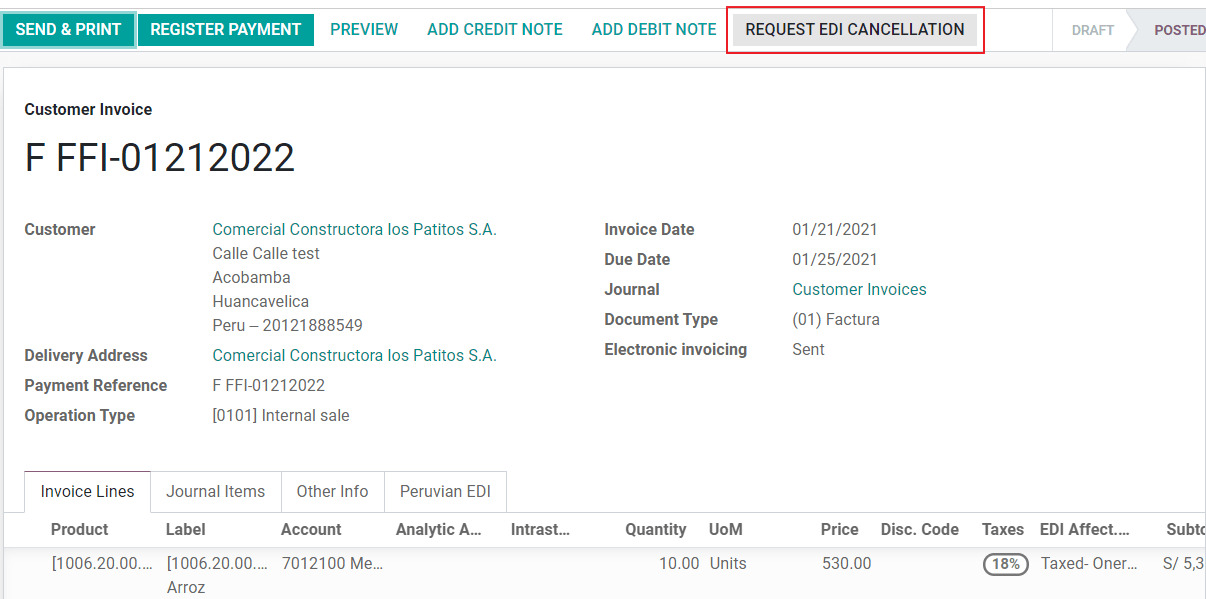
برای لغو یک فاکتور، لطفاً یک دلیل لغو ارائه دهید.
وضعیت فاکتور الکترونیکی
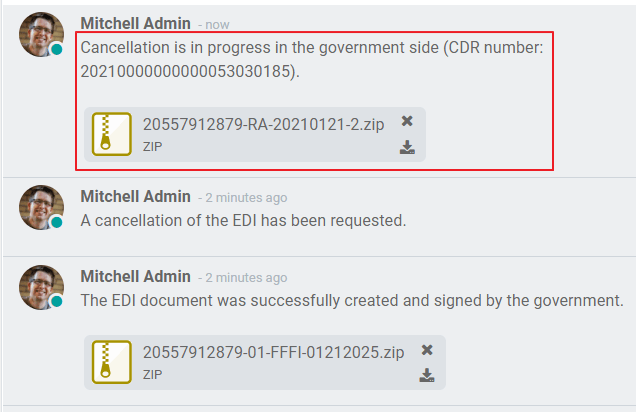
To Cancel: نشان میدهد که درخواست لغو آمادهٔ ارسال به OSE است؛ این کار میتواند یا بهصورت خودکار توسط Odoo با یک cron که هر ساعت اجرا میشود انجام شود، یا کاربر میتواند با کلیک روی دکمهٔ «Send now» آن را بلافاصله ارسال کند. پس از ارسال، یک تیکت لغو ایجاد میشود و در نتیجه پیام بعدی و فایل CDR در چتر ثبت میشوند:
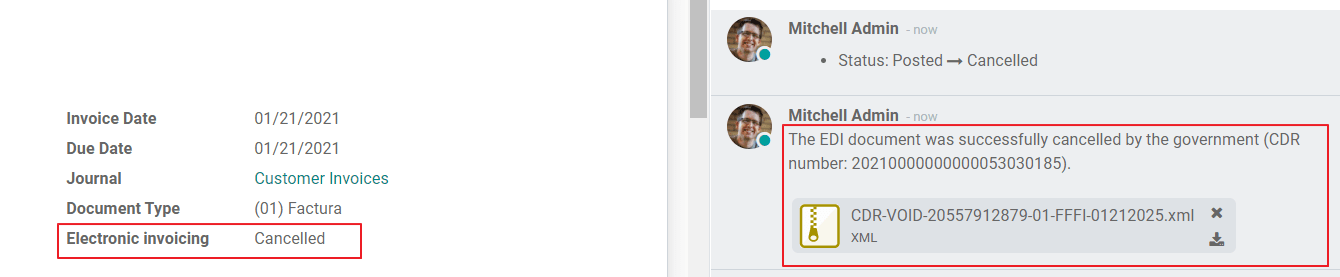
Cancelled: نشان میدهد که درخواست لغو به OSE ارسال شده و با موفقیت اعتبارسنجی شده است. بهعنوان بخشی از اعتبارسنجی، یک فایل ZIP دانلود میشود و پیامی در چتر ثبت میشود که اعتبارسنجی صحیح دولتی را نشان میدهد.
هشدار
در هر درخواست لغو، یک اعتبار مصرف میشود.
Export invoices
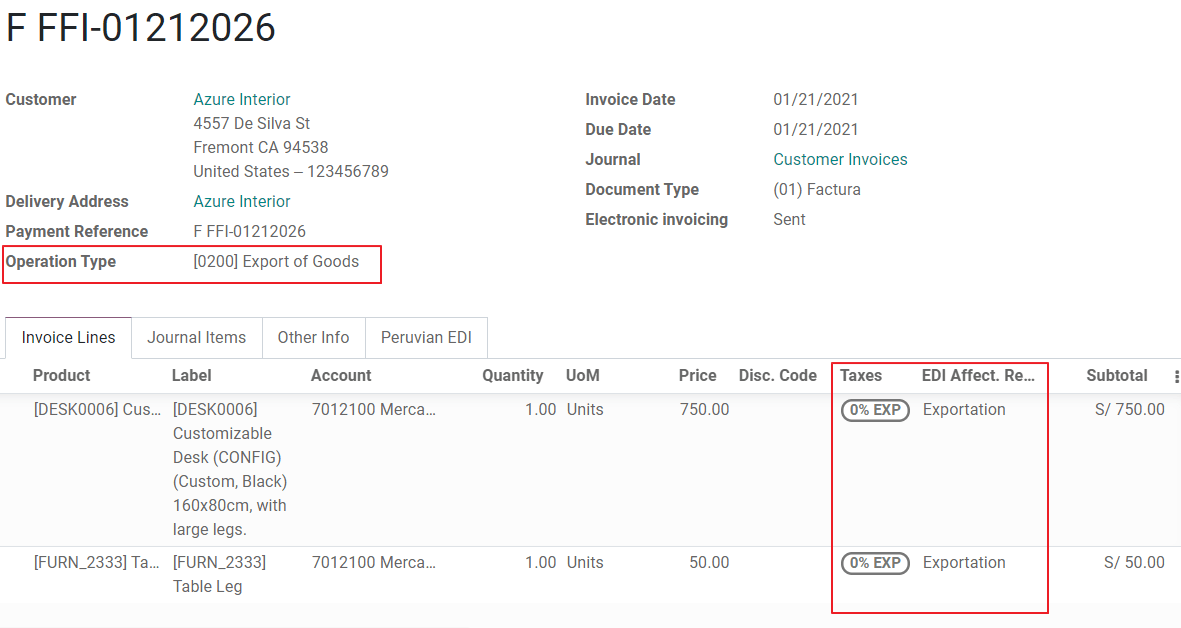
هنگام ایجاد فاکتورهای صادراتی، ملاحظات زیر را در نظر بگیرید:
نوع شناسایی روی مشتری شما باید Foreign ID باشد.
نوع عملیات در فاکتور شما باید از نوع صادراتی باشد.
مالیاتهای گنجاندهشده در سطرهای فاکتور باید مالیاتهای EXP باشند.
پیشپرداختها
توجه
از آنجا که SUNAT اجازهٔ ثبت مقادیر منفی در اظهارنامهها را نمیدهد، هنگام گزارش پیشپرداختها به یک راهحل جایگزین نیاز است.
سفارش فروشی را که به یک پیشپرداخت نیاز دارد باز کنید.
روی ایجاد فاکتور کلیک کنید و پیشپرداخت(درصد) یا پیشپرداخت(مبلغ) را انتخاب کنید. مبلغ را وارد کنید، سپس روی ایجاد پیشنویس کلیک کنید.
بررسی کنید که همهٔ اطلاعات صحیح باشد. اگر صحیح است، روی تایید کلیک کنید. در غیر این صورت، پیش از تأیید، تغییرات لازم را اعمال کنید.
به سفارش فروش بازگردید و روی کلیک کنید تا برای ایجاد فاکتور ادامه دهید.
از فاکتور، جداکنندهٔ بخش و سطر فاکتور پیشپرداخت را با کلیک روی آیکن (trash bin) حذف کنید و تایید را بزنید.

پس از تأیید، روی چک پول کلیک کنید، سپس معکوس را بزنید و در نهایت همهٔ سطرهای فاکتور را با کلیک روی آیکن (trash bin) حذف کنید. فاکتور باید عاری از هر محصولی باشد.
سپس، روی افزودن یک سطر کلیک کنید. روی آیکن (bars) کلیک کنید، یک توضیح وارد کنید (برای مثال
Down Payment) و قیمت را وارد کنید. روی تایید کلیک کنید.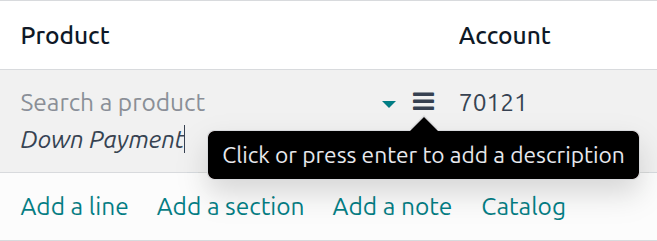
پس از صدور یادداشت بستانکار و در صورتی که بهصورت خودکار انجام نشود، آن را با فاکتور نهایی تطبیق دهید.
مانده باقیماندهٔ فاکتور نهایی باید با یک تراکنش پرداخت معمولی پرداخت شود.
فاکتورهای کسر (Detraction)
هنگام ایجاد فاکتورهایی که مشمول کسرها (Detractions) هستند، ملاحظات زیر را در نظر بگیرید:
همهٔ محصولات گنجاندهشده در فاکتور باید این فیلدها را پیکربندیشده داشته باشند:
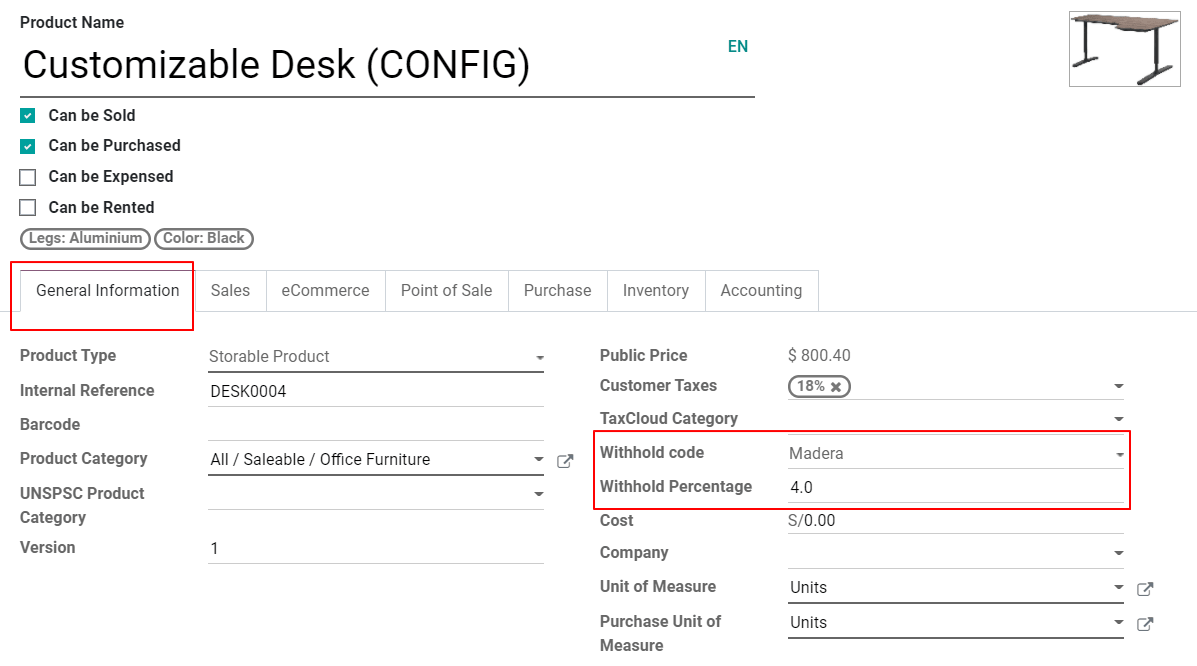
نوع عملیات در فاکتور شما باید
1001باشد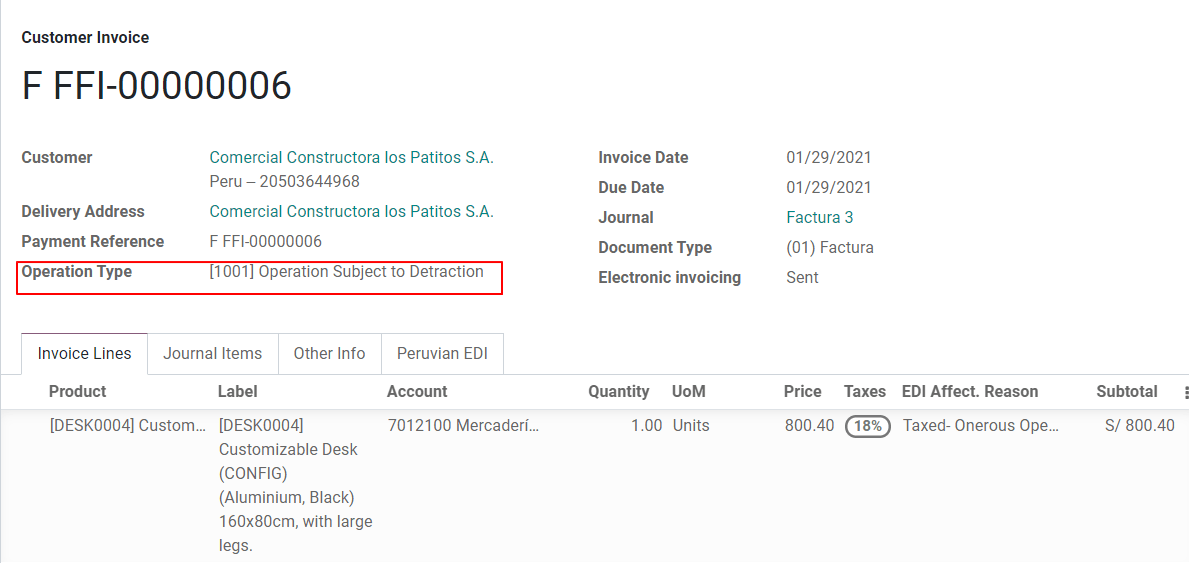
یادداشتهای بستانکار
هنگامی که یک اصلاح یا بازپرداخت روی یک فاکتور اعتبارسنجیشده موردنیاز است، باید یک یادداشت بستانکار تولید شود؛ برای این کار کافی است روی دکمهٔ «Add Credit Note» کلیک کنید. بهعنوان بخشی از بومیسازی پرو، باید با انتخاب یکی از گزینههای فهرست، یک دلیل بستانکار ارائه دهید.
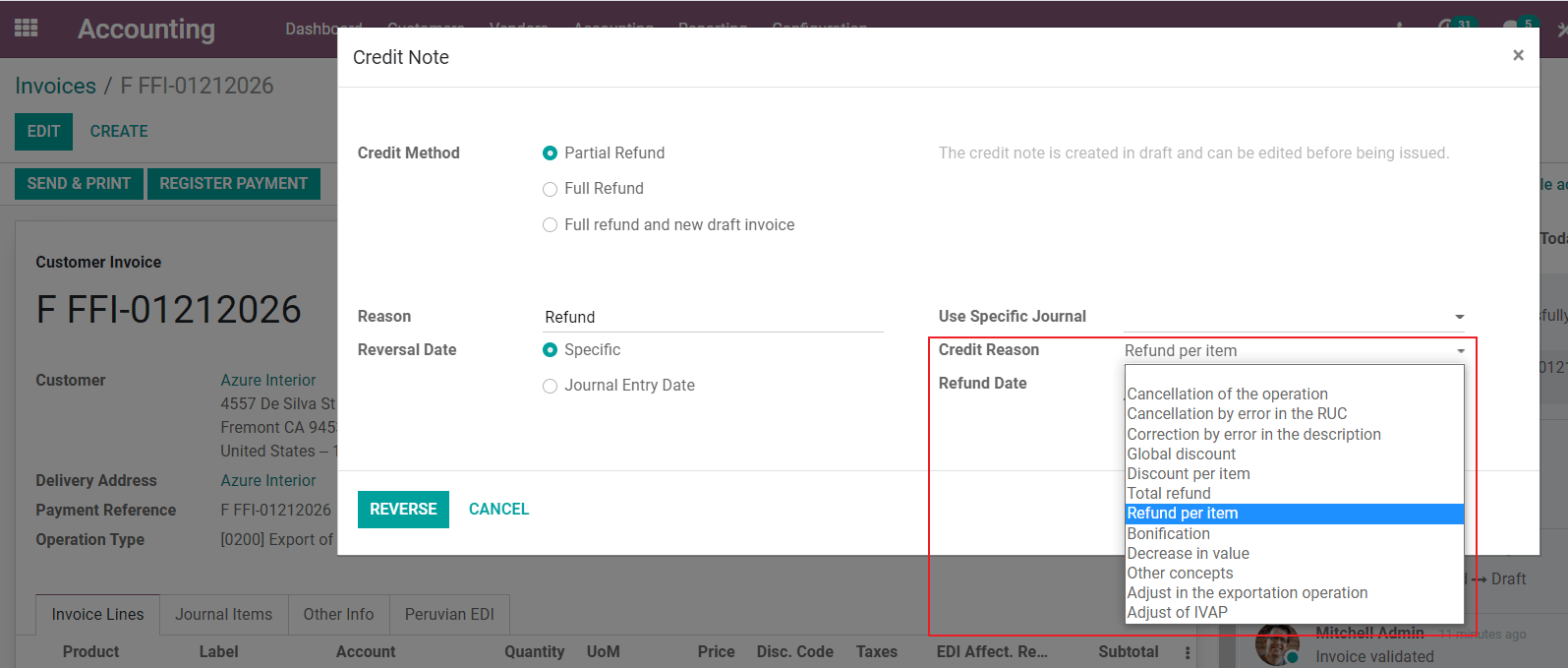
نکته
هنگام ایجاد اولین یادداشت بستانکار خود، روش بستانکار را انتخاب کنید: بازپرداخت جزئی؛ این کار به شما امکان میدهد توالی یادداشت بستانکار را تعریف کنید.
بهصورت پیشفرض، یادداشت بستانکار در نوع سند تنظیم میشود:
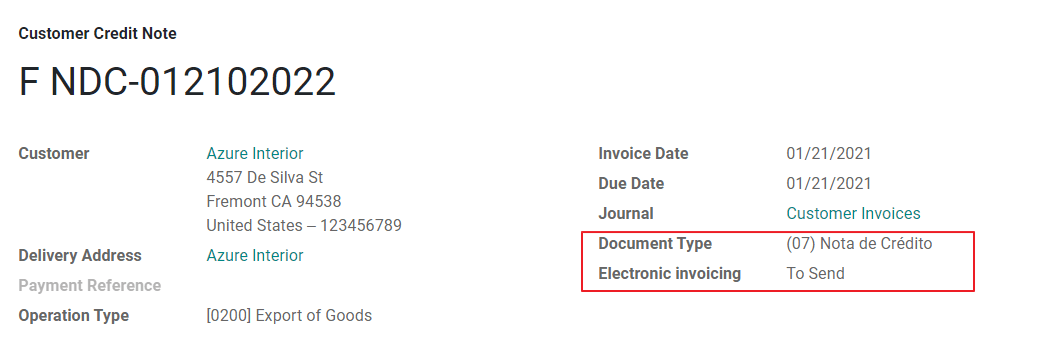
برای تکمیل گردشکار، لطفاً دستورالعملهای موجود در صفحهٔ ما دربارهٔ یادداشتهای بستانکار را دنبال کنید.
توجه
گردشکار EDI برای یادداشتهای بستانکار به همان شیوهٔ فاکتورها کار میکند.
یادداشتهای بدهکار
بهعنوان بخشی از بومیسازی پرو، علاوه بر ایجاد یادداشتهای بستانکار از یک سند موجود، میتوانید یادداشتهای بدهکار نیز ایجاد کنید. برای این کار کافی است از دکمهٔ «Add Debit Note» استفاده کنید.
بهصورت پیشفرض، یادداشت بدهکار در نوع سند تنظیم میشود.
راهنمای تحویل الکترونیکی 2.0
Guía de Remisión Electrónica (GRE) یک سند الکترونیکی است که توسط فرستنده تولید میشود تا حمل یا انتقال کالا از یک مکان به مکان دیگر، مانند یک انبار یا مؤسسه، را پشتیبانی کند. در Odoo، پیش از آنکه بتوانید با موفقیت از این ویژگی استفاده کنید، چندین مرحلهٔ پیکربندی موردنیاز است.
استفاده از سند الکترونیکی guía de remisión electrónica اجباری است و توسط SUNAT برای مؤدیانی که نیاز به انتقال محصولات خود دارند الزامی شده است، بهجز آنهایی که تحت رژیم سادهشدهٔ واحد (régimen único simplificado یا RUS) قرار دارند.
انواع راهنمای تحویل
فرستنده
نوع راهنمای تحویل فرستنده زمانی صادر میشود که فروشی انجام شود، خدمتی ارائه شود (از جمله پردازش)، کالاها برای استفاده اختصاص داده شوند، یا کالاها میان محلهای یک شرکت یکسان و دیگران منتقل شوند.
این راهنمای تحویل توسط صاحب کالا (یعنی فرستنده) در آغاز محموله صادر میشود. راهنمای تحویل فرستنده در Odoo پشتیبانی میشود.
همچنین ببینید
شرکت حمل
نوع راهنمای تحویل شرکت حمل خدمت حملونقلی را که راننده (یا شرکت حمل) انجام میدهد توجیه میکند.
این راهنمای تحویل توسط شرکت حمل صادر میشود و هنگامی که محموله از طریق حملونقل عمومی جابهجا میشود، باید برای هر فرستنده صادر شود.
مهم
راهنمای تحویل شرکت حمل در Odoo پشتیبانی نمیشود.
همچنین ببینید
انواع حملونقل
خصوصی
گزینهٔ نوع حملونقل خصوصی زمانی استفاده میشود که صاحب کالا با استفاده از وسایل نقلیهٔ خود کالاها را منتقل میکند. در این حالت، باید یک راهنمای تحویل فرستنده صادر شود.
عمومی
گزینهٔ نوع حملونقل عمومی زمانی استفاده میشود که یک شرکت حمل خارجی کالاها را جابهجا میکند. در این حالت، باید دو راهنمای تحویل صادر شود: راهنمای تحویل فرستنده و راهنمای تحویل شرکت حمل.
ارسال مستقیم به SUNAT
ایجاد راهنمای تحویل GRE در Odoo باید صرفنظر از ارائهدهندهٔ سند الکترونیکی—IAP، Digiflow یا SUNAT—مستقیماً به SUNAT ارسال شود.
اطلاعات موردنیاز
نسخهٔ 2.0 راهنمای تحویل الکترونیکی به اطلاعات اضافی دربارهٔ پیکربندی عمومی، وسایل نقلیه، مخاطبین و محصولات نیاز دارد. در پیکربندی عمومی، لازم است اعتبارنامههای جدیدی را که میتوانید از درگاه SUNAT دریافت کنید اضافه کنید.
لغوها
هر دو فرستنده و شرکت حمل میتوانند بارنامهٔ الکترونیکی را لغو کنند، تا زمانی که شرایط زیر برآورده شوند:
محموله آغاز نشده باشد.
اگر محموله آغاز شده باشد، گیرنده باید پیش از رسیدن به مقصد نهایی تغییر داده شود.
مهم
SUNAT دیگر از اصطلاح «Anula» استفاده نمیکند، بلکه اکنون برای لغوها از اصطلاح «Dar de baja» استفاده میکند.
آزمایش
SUNAT از یک محیط آزمایشی پشتیبانی نمیکند. این بدان معناست که هر راهنمای تحویلی که بهاشتباه تولید شده باشد به SUNAT ارسال خواهد شد.
اگر بارنامه بهاشتباه در این محیط ایجاد شده باشد، لازم است آن را از درگاه SUNAT حذف کنید.
پیکربندی
مهم
GRE الکترونیکی فرستنده در حال حاضر تنها نوع بارنامهٔ پشتیبانیشده در Odoo است.
راهنمای تحویل به اپلیکیشن انبار Odoo و ماژولهای l10n_pe_edi و l10n_pe وابسته است.
برای ایجاد اسناد الکترونیکی باید یک کاربر دوم اضافه شود.
پس از دنبالکردن مراحل پیکربندی صدور فاکتور الکترونیکی و دادههای اصلی، ماژول Peruvian - Electronic Delivery Note 2.0 (l10n_pe_edi_stock_20) را نصب کنید.
سپس، باید client ID و client secret را از SUNAT دریافت کنید. برای این کار، manual de servicios web plataforma nueva GRE را دنبال کنید.
توجه
در درگاه SUNAT، مهم است که حقوق دسترسی صحیح فعال باشند، زیرا ممکن است با کاربر تنظیمشده برای صدور فاکتور الکترونیکی متفاوت باشند.
این اعتبارنامهها باید برای پیکربندی تنظیمات عمومی راهنمای تحویل از استفاده شوند؛ به پایین بروید تا به بخش Peru Delivery Guide برسید.
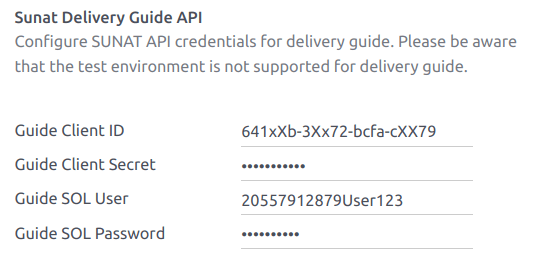
فیلدهای Sunat Delivery Guide API زیر را پیکربندی کنید:
Guide Client ID: client ID منحصربهفرد API که در درگاه SUNAT تولید شده است
Guide Client Secret: client secret منحصربهفرد API که در درگاه SUNAT تولید شده است
Guide SOL User: شمارهٔ RUC + نام کاربری SOL
Guide SOL Password: رمز عبور کاربر SOL
توجه
لازم است برای فیلد Guide SOL User از قالب RUC + UsuarioSol (برای مثال 20557912879SOLUSER) پیروی کنید، بسته به کاربری که هنگام تولید اعتبارنامههای API GRE در درگاه SUNAT انتخاب شده است.
اپراتور
اپراتور رانندهٔ وسیلهٔ نقلیه در مواردی است که راهنمای تحویل از طریق حملونقل خصوصی است.
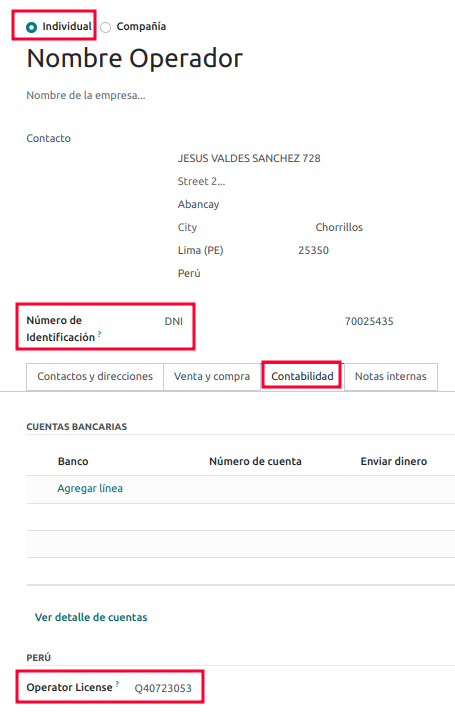
برای ایجاد یک اپراتور جدید، به بروید و اطلاعات مخاطب را تکمیل کنید.
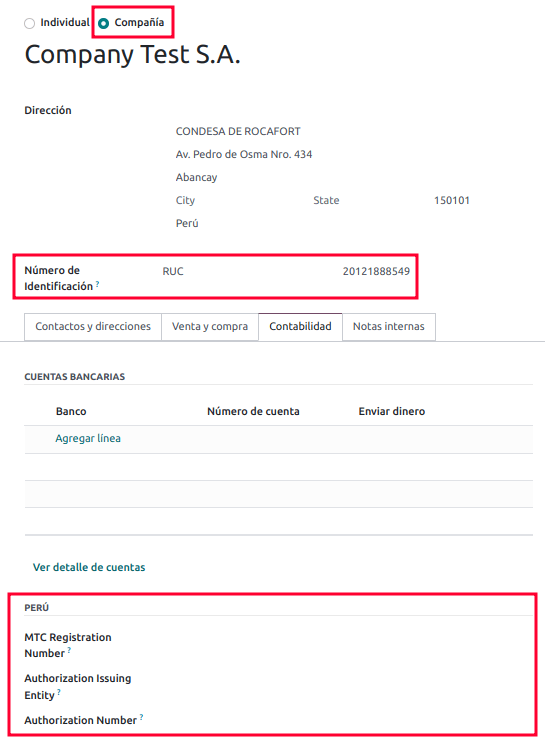
ابتدا، فرد را بهعنوان نوع شرکت انتخاب کنید. سپس، Operator License را در تب حسابداری فرم مخاطب اضافه کنید.
برای آدرس مشتری، مطمئن شوید که فیلدهای زیر کامل هستند:
District
شناسه مالیاتی (DNI/RUC)
Tax ID Number
شرکت حمل
شرکت حمل زمانی استفاده میشود که راهنمای تحویل از طریق حملونقل عمومی است.
برای ایجاد یک شرکت حمل جدید، به بروید و اطلاعات مخاطب را تکمیل کنید.
ابتدا، شرکت را بهعنوان نوع شرکت انتخاب کنید. سپس، MTC Registration Number، Authorization Issuing Entity و Authorization Number را اضافه کنید.
برای آدرس شرکت، مطمئن شوید که فیلدهای زیر کامل هستند:
District
شناسه مالیاتی (DNI/RUC)
Tax ID Number
وسایل نقلیه
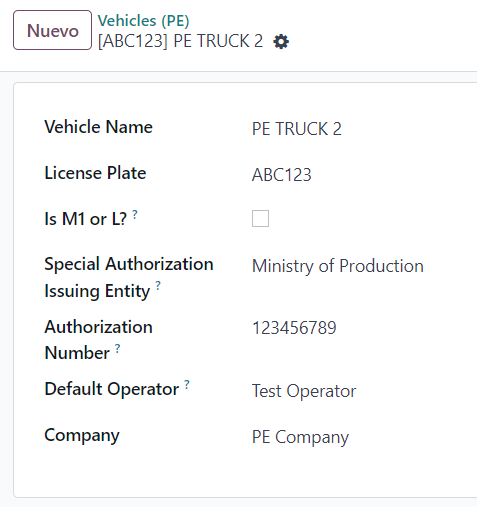
برای پیکربندی وسایل نقلیهٔ موجود، به بروید و فرم وسیلهٔ نقلیه را با اطلاعات موردنیاز برای وسیلهٔ نقلیه تکمیل کنید:
نام خودرو
پلاک مجوز
Is M1 or L?
Special Authorization Issuing Entity
Authorization Number
Default Operator
شرکت
مهم
مهم است که اگر وسیلهٔ نقلیه کمتر از چهار چرخ یا کمتر از هشت صندلی دارد، تیک Is M1 or L? را بزنید.
محصولات
برای پیکربندی محصولات موجود، به بروید و محصولی را که باید پیکربندی شود باز کنید.
مطمئن شوید که اطلاعات قابلاعمال در فرم محصول بهطور کامل پیکربندی شده است. فیلد Partida Arancelaria (قلم تعرفه) باید تکمیل شود.
تولید یک GRE
پس از آنکه تحویل از انبار در طول گردشکار فروش ایجاد شد، مطمئن شوید که فیلدهای GRE را در بخش بالا-راست فرم انتقال برای فیلدهای زیر تکمیل میکنید:
Transport Type
Reason for Transfer
Departure start date
همچنین لازم است فیلدهای خودرو و اپراتور را در تب Guia de Remision PE تکمیل کنید.
انتقال تحویل باید بهعنوان انجامشده علامتگذاری شود تا دکمهٔ Generar Guia de Remision در منوی سمت چپ فرم انتقال ظاهر شود.

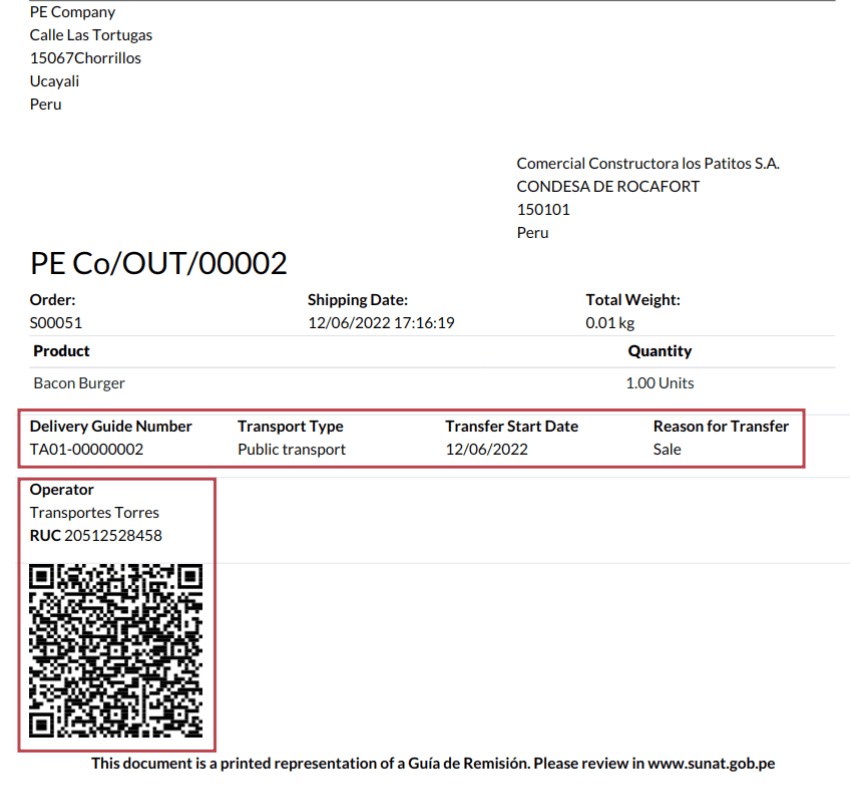
پس از آنکه فرم انتقال بهدرستی توسط SUNAT اعتبارسنجی شد، فایل XML تولیدشده در چتر در دسترس قرار میگیرد. اکنون میتوانید برگهٔ تحویل را که جزئیات انتقال و کد QR اعتبارسنجیشده توسط SUNAT را نشان میدهد چاپ کنید.
خطاهای رایج
Diferente prefijo para productos (T001 en algunos, T002 en otros)در حال حاضر، Odoo از خودکارسازی پیشوندها برای محصولات پشتیبانی نمیکند. این کار را میتوان بهصورت دستی برای خروجی هر محصول انجام داد. این کار را برای محصولات غیرقابل ذخیره نیز میتوان انجام داد. با این حال، به یاد داشته باشید که هیچ قابلیت ردگیری وجود نخواهد داشت.
2325 - GrossWeightMeasure - El dato no cumple con el formato establecido "Hace falta el campo"
"Peso"" en el producto
این خطا زمانی رخ میدهد که وزن روی محصول روی
0.00تنظیم شده باشد. برای رفع این مشکل، باید بارنامه را لغو کرده و دوباره ایجاد کنید. مطمئن شوید که پیش از ایجاد بارنامهٔ جدید، وزن روی محصول را اصلاح میکنید، در غیر این صورت همان خطا رخ خواهد داد.JSONDecodeError: Expecting value: line 1 column 1 (char 0) when creating a Delivery Guideاین خطا معمولاً بهدلیل مشکلات کاربر SOL ایجاد میشود. اتصال کاربر با SUNAT را بررسی کنید؛ کاربر SOL باید با RUT شرکت + شناسهٔ کاربر تنظیم شده باشد. برای مثال
2012188549JOHNSMITH.El número de documento relacionado al traslado de mercancía no cumple con el formato establecido: error: documento relacionadoفیلدهای Related Document Type و Related Document Number فقط برای فاکتورها و رسیدها قابل اعمال هستند.
400 Client error: Bad Request for URLاین خطا از طریق Odoo قابل حل نیست؛ توصیه میشود با SUNAT تماس بگیرید و کاربر را تأیید کنید. ممکن است نیاز به ایجاد کاربر جدید باشد.
Invalid content was found starting with element 'cac:BuyerCustomerParty'این خطا زمانی رخ میدهد که دلیل انتقال other تنظیم شده باشد. لطفاً گزینهٔ دیگری انتخاب کنید. مطابق با مستندات رسمی راهنمای بارنامهٔ SUNAT، دلایل انتقال 03 (sale with shipment to third party) یا 12 (others) در Odoo کار نمیکنند، زیرا نباید مشتری خالی یا بدون مقدار داشته باشید.
Duda cliente: consumo de créditos IAP al usar GRE 2.0برای کلاینتهای زنده که از IAP استفاده میکنند، (در تئوری) هیچ اعتباری مصرف نمیشود زیرا از طریق OSE عبور نمیکند، یعنی این اسناد مستقیماً به SUNAT ارسال میشوند.
Errores con formato credenciales GRE 2.0 (traceback error)Odoo در حال حاضر بهجای پیامی مبنی بر اینکه اعتبارنامهها بهدرستی در پایگاه داده پیکربندی نشدهاند، خطایی با ردیابی (traceback) ایجاد میکند. اگر این موضوع در پایگاه دادهٔ شما رخ داد، لطفاً اعتبارنامههای خود را بررسی کنید.
صدور فاکتور الکترونیکی تجارت الکترونیک
ابتدا، ماژول Peruvian eCommerce (l10n_pe_website_sale) را نصب کنید.
ماژول Peruvian eCommerce ویژگیها و پیکربندیهای زیر را فعال میکند:
اجازه میدهد مشتریان حسابهای آنلاین برای مقاصد تجارت الکترونیک ایجاد کنند؛
از فیلدهای مالیاتی موردنیاز در اپلیکیشن تجارت الکترونیک پشتیبانی میکند؛
پرداختها برای سفارشهای فروش را بهصورت آنلاین دریافت میکند؛
اسناد الکترونیکی را از اپلیکیشن تجارت الکترونیک تولید میکند.
توجه
ماژول Peruvian eCommerce به نصب پیشین اپلیکیشن صدور فاکتور یا حسابداری و همچنین اپلیکیشن وبسایت وابسته است.
پیکربندی
پس از پیکربندی جریان صدور فاکتور الکترونیکی پرو، پیکربندیهای زیر را برای جریان تجارت الکترونیک تکمیل کنید:
محصولات: سیاست صدور فاکتور را روی تعداد سفارش داده شده تنظیم کنید و Customer taxes موردنظر را تعریف کنید.
روشهای تحویل: برای هر روش حملونقل، فیلد تأمینکننده را روی قیمت مقطوع تنظیم کنید. سپس، یک مبلغ قیمت مقطوع بزرگتر از
0.00(نه صفر) تنظیم کنید، زیرا قیمت روش حملونقل به سطر فاکتور اضافه میشود.
توجه
Mercado Pago یک ارائهدهندهٔ پرداخت آنلاین است که در Odoo پشتیبانی میشود و چندین کشور، ارز و روش پرداخت در آمریکای لاتین را پوشش میدهد.
مطمئن شوید که یک قیمت حراج روی تحویل بسته روش حملونقل تعریف میکنید تا از خطاها هنگام اعتبارسنجی فاکتور با SUNAT جلوگیری شود.
برای ارائهٔ تحویل رایگان، تحویل بسته را بهصورت دستی حذف کنید، یا دستکم از
$0.01(یک سنت) استفاده کنید تا فاکتور با SUNAT اعتبارسنجی شود.
همچنین ببینید
جریان صدور فاکتور برای تجارت الکترونیک
پس از آنکه همهٔ پیکربندیها تنظیم شدند، فیلدهای ورودی مالیاتی در طول فرایند پرداخت برای مشتریان واردشده در دسترس خواهند بود.
هنگامی که مشتریان دادههای مالیاتی خود را در زمان پرداخت وارد میکنند و یک خرید موفق را تکمیل میکنند، فاکتور با عناصر EDI متناظر تولید میشود. نوع سند (Boleta/Factura) بر اساس شناسهٔ مالیاتی آنها (RUC/DNI) انتخاب میشود. سپس فاکتور باید به OSE و SUNAT ارسال شود. بهصورت پیشفرض، همهٔ فاکتورهای منتشرشده روزی یکبار از طریق یک اقدام زمانبندیشده ارسال میشوند، اما در صورت نیاز میتوانید هر فاکتور را بهصورت دستی نیز ارسال کنید.
پس از آنکه فاکتور با SUNAT اعتبارسنجی شد، مشتریان میتوانند فایل .zip را که شامل فایلهای CDR، XML و PDF است، مستقیماً از پورتال مشتری با کلیک روی دکمهٔ دانلود دانلود کنند.
گزارشها
گزارشهای دائمی موجودی: PLE 12.1 و PLE 13.1
Odoo میتواند دو گزارش دائمی موجودی را بهصورت فایلهای .txt برای حسابداری پرو تولید کند: PLE 12.1 و PLE 13.1. همهٔ تراکنشهای موجودی انجامشده باید گزارش شوند.
PLE 12.1 تنها موجودی را به واحدهای فیزیکی ردگیری میکند و بر ورود و خروج کالاها برای مدیریت و برنامهریزی مؤثر تمرکز دارد.
PLE 13.1 هم مقادیر فیزیکی و هم ارزشهای پولی موجودی را ردگیری میکند و نمایی جامع برای مقاصد مالیاتی و مدیریتی فراهم میکند.
هر دو گزارش باید بهصورت ششماهه (ژانویه تا ژوئن و ژوئیه تا دسامبر) نگهداری شوند و جزئیات تراکنشهای ماهانه در این دورهها گزارش شوند. مهلتهای ارسال، اول اکتبر برای نیمسال اول و اول آوریل برای نیمسال دوم است، مطابق با Resolución de Superintendencia N° 169-2015.
پیکربندی
پیش از تولید گزارشهای PLE 12.1 یا PLE 13.1، مطمئن شوید که ماژول Peru - Stock Reports (l10n_pe_reports_stock) نصب شده است، سپس فیلدهای موارد زیر را بهروزرسانی کنید:
محصولات
چندین پیکربندی مرتبط با محصول یا دستهٔ محصول برای گزارشدهی PLE لازم است:
نوع موجودیت: برای همهٔ محصولاتی که به گزارشدهی PLE نیاز دارند، به تب حسابداری رکورد محصول بروید و Type of Existence را مطابق با جدول ۵ SUNAT برای گزارشدهی موجودی انتخاب کنید.
ارزشگذاری خودکار موجودی: برای کالاهای قابل ذخیره (products with tracked inventory)، از ارزشگذاری خودکار موجودی استفاده کنید. پس از فعالسازی ارزشگذاری خودکار موجودی، میتوان این روش ارزشگذاری را برای دستهٔ محصول یک محصول فعال کرد.
روش هزینهیابی: کالاهای قابل ذخیره باید از یک روش هزینهیابی غیر از قیمت استاندارد استفاده کنند، زیرا اسناد حسابداری تولیدشده از حرکتهای موجودی برای پر کردن گزارشهای PLE استفاده میشوند.
انبارها
هنگام راهاندازی یک انبار، فیلد Annex Establishment Code باید تکمیل شود. این کد بهعنوان یک شناسهٔ منحصربهفرد برای هر انبار عمل میکند و باید فقط یک ترکیب عددی باشد که بین ۴ تا ۷ رقم دارد.
انتقالات موجودی
انتقال موجودی یک فرایند کلیدی است که در گزارشهای PLE 12.1 و PLE 13.1 ثبت میشود. انتقالات موجودی شامل هر دو محمولهٔ ورودی و خروجی است.
هنگام اعتبارسنجی یک انتقال موجودی (چه روی یک رسید انبار و چه یک سفارش تحویل)، Type of Operation (PE) انجامشده را مطابق با جدول ۱۲ SUNAT برای گزارشدهی دائمی موجودی انتخاب کنید.
تولید یک فایل .txt برای گزارشهای کاردکس دائمی موجودی
PLE 12.1 و 13.1 بهصورت دو دفتر جداگانه ارائه میشوند. این دفترها باید در قالب فایل .txt از Odoo دانلود شوند و سپس باید به نرمافزار PLE SUNAT ارسال شوند.
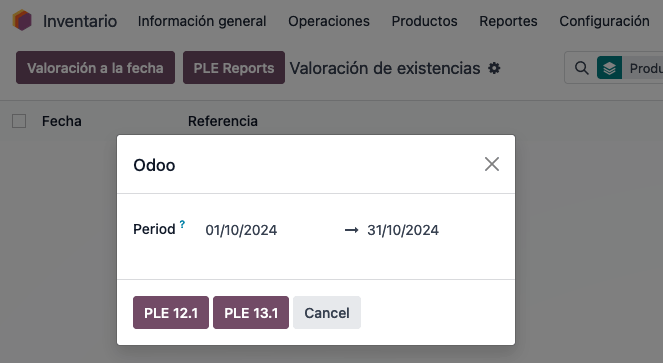
در گزارش ارزشگذاری موجودی، روی دکمهٔ PLE Reports کلیک کنید. سپس، دوره را انتخاب کنید و یک گزارش برای خروجیگرفتن انتخاب کنید: یا PLE 12.1 یا PLE 13.1. Odoo یک فایل .txt برای گزارش انتخابشده تولید میکند.
توجه
تنها دانلود گزارش در قالب .txt در دسترس است. هیچ پیشنمایش یا نمایش بصریای در Odoo در دسترس نیست.