
Hong Kong
The Hong Kong payroll localization ensures all salary computations strictly comply with the Employment Ordinance (Cap. 57) and Inland Revenue Department (IRD) requirements. This includes automated calculations for Mandatory Provident Fund (MPF) contributions, the generation of IR56 reports, and the processing of leave payments such as Payment in Lieu of Notice, Severance Payments (SP), and Long Service Payments (LSP)—fully updated for the 2025 MPF offsetting transition rules.
Note
Before configuring the Hong Kong localization, refer to the general payroll documentation. It covers foundational information applicable to all localizations, including universal settings, salary structures, and global payroll fields.
Apps & modules
Install the following modules to get all the features of the Hong Kong payroll localization:
Name |
Technical name |
Description |
|---|---|---|
Hong Kong - Accounting |
|
The base module to manage the chart of accounts and localization for Hong Kong. |
Hong Kong - Payroll |
|
Enables payroll specific localization features for the Odoo Payroll app. This module also installs Hong Kong - Payroll with Accounting and Documents - Hong Kong Payroll. |
Hong Kong - Payroll with Accounting |
|
Installs the link between Hong Kong payroll and accounting. |
Hong Kong - Payroll eMPF |
|
Enables the eMPF module to process eMPF contributions and reports. |
Documents - Hong Kong Payroll |
|
Integrates employee IR56 forms in the Odoo Documents app. |
General configurations
Odoo supports multicompany management. First, the company must be configured. Navigate to . Create a new company or select an existing one, and configure the following fields:
Company Name: Enter the business name in this field.
Address: Complete the full address, including the City, State, Zip Code, and Country.
Currency: By default,
HKDis selected. If not, selectHKDfrom the drop-down menu.Phone: Enter the company phone number.
Email: Enter the email used for general contact information.
Note
The Company Name entered here automatically populates as the Employer’s
Name on reports for IRD reporting. Only HKD is supported for compliant Hong Kong
localization payroll calculations.
Payroll configuration
Several sections in the configuration menu (Settings, Salary Structures & Rules, Work Entry Types, Working Schedule, MPF Scheme) define specific localization rules for Hong Kong.
Settings
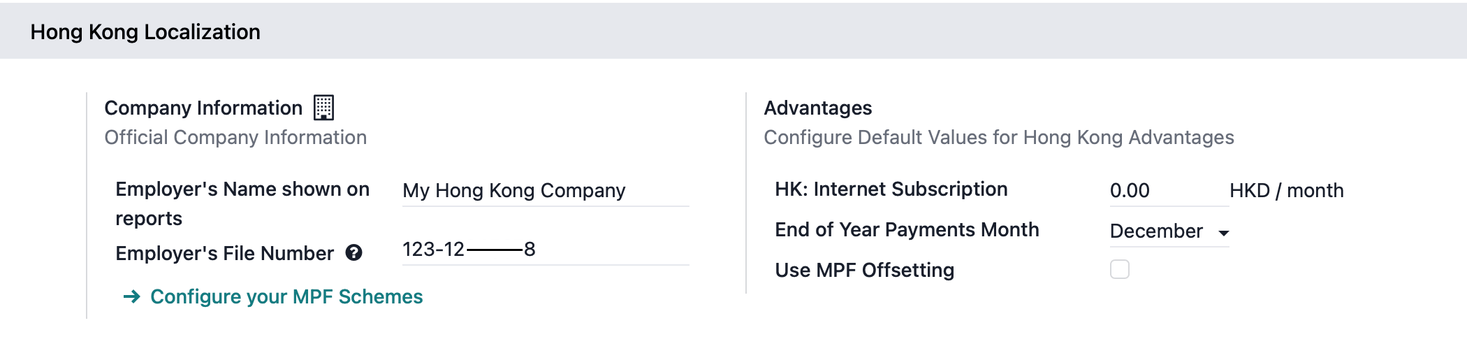
Advantages
HK: Internet Subscription: Add a default monthly internet allowance.
End of Year Payments Month: Select the month to automatically add end-of-year payments to payslips (if any).
Use MPF Offsetting: Enable this to define pre-set and post-set offset periods for calculating Severance Payments (SP) and Long Service Payments (LSP).
Tip
The Advantages section is optional. Configuring benefits here applies the same value to all employees, reducing manual configuration.
Accounting section
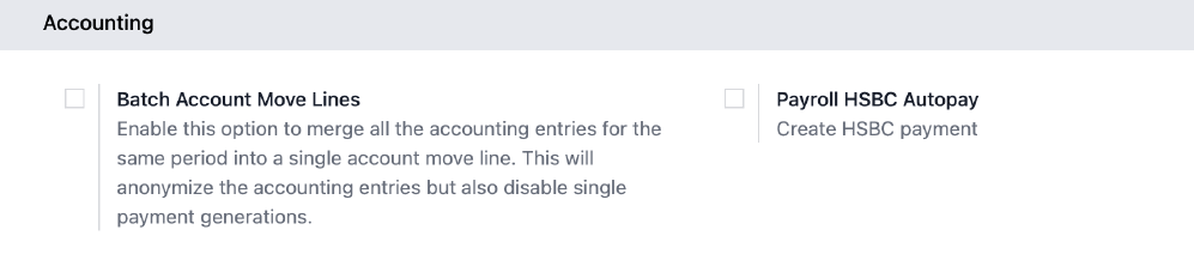
Configure the entries for the Accounting section:
Payroll HSBC Autopay: Enable to create HSBC payment files.
Batch Account Move Lines: Enable to merge all accounting entries for the same period into a single account move line. This anonymizes accounting entries but disables single payment generations.
Structures & rules
Navigate to to check salary rules or configure specific company salary rules.
CAP57: Employees Monthly Pay
Odoo provides the CAP57: Employees Monthly Pay salary structure to calculate compliant payroll for regular employees. The following salary rules are mandatory, which are added automatically to payslips:
Rent Allowance: Amount derived from the employee’s active rental record.
Basic Salary: Amount of base salary provided (after rent allowance deduction).
713 Gross: Net payable amount considering commissions, internet allowance, reimbursements, back-pay, deductions, etc.
MPF Gross: Net payable amount from 713 gross after consideration of additional allowances, deductions, and end-of-year payment.
Employee Mandatory Contribution: Mandatory employee MPF contribution.
Employer Mandatory Contribution: Mandatory employer MPF contribution.
Employee Voluntary Contribution: Voluntary employee contribution (if any).
Employer Voluntary Contribution: Voluntary employer contribution (if any).
Employer Voluntary Contribution 2: Additional voluntary employer contribution (if any).
Gross: Net payable amount from MPF gross after consideration of MPF deductions.
Net Salary: Final payable amount to be paid to the employee.
The following salary rules are optional rules for employee benefits, which can be manually added as salary inputs in the payslip under the Salary Inputs tab:
Back Pay: Additional salary payout can be included under this category.
Commission: The commission earned during the period can be manually entered.
Global Deduction: A lump-sum deduction from the entire payslip.
Global Reimbursement: A lump-sum reimbursement to the entire payslip.
Referral Fee: The additional bonus offered for any form of business-related referral.
Moving Daily Wage: To override the ADW value used for leave computation.
Skip Rent Allowance: If set, the rental allowance is excluded from the current payslip.
Custom Average Monthly Salary: To override the average monthly salary used for end-of-year payment (rule is only applicable to payslips generated in December).
CAP57: Payment in Lieu of Notice
Odoo provides the CAP57: Payment in Lieu of Notice salary structure to process a final payment to an employee in place of serving a required notice period upon termination.
Mandatory rule for this salary structure which is automatically added to the payslip:
Payment in Lieu of Notice: This is the calculated amount paid to the employee corresponding to the unserved notice period.
Optional rule for this salary structure which can be manually added as a salary input in the payslip under the Salary Inputs tab:
Lieu of Notice Period (Months): Only applicable to the
CAP57: Payment in Lieu of Noticesalary structure. By default, the final payout is set to 1-month. Use the Count field under the salary inputs tab to set a different notice period duration.
CAP57: Long Service Payment (LSP)
Odoo provides the CAP57: Long Service Payment salary structure to process an employee whose continuous employment with the employer, under a contract of employment, reaches 5 years.
Mandatory rules for this salary structure which are automatically added to the payslip:
Long Service Payment: The final calculated amount of long service payment paid to the employee (after applying offsets, if any).
Long Service Payment Pre Transition: The portion of the long service payment calculated based on the employment period before the transition date of the offsetting arrangement, where MPF contributions can still be used to offset the payment.
Long Service Payment Post Transition: The portion of the long service payment calculated based on the employment period on or after the transition date of the offsetting arrangement.
Enable Use MPF Offsetting in the Hong Kong localization section to use these offset salary rules:
Pre-transition Offset: The amount of MPF contribution (or benefits from an ORSO scheme) that can be used to offset the pre-transition amount.
Post-transition Offset: The amount of MPF contribution (or benefits from an ORSO scheme) that can be used to offset the post-transition amount.
CAP57: Severance Payment (SP)
Odoo provides the CAP57: Severance Payment salary structure to process an employee whose continuous employment with the employer, under a contract of employment, reaches 2 years.
Mandatory rules for this salary structure which are automatically added to the payslip:
Severance Payment: The final calculated amount of severance payment paid to the employee (after applying offsets, if any).
Severance Payment Pre Transition: The portion of the severance payment calculated based on the employment period before the transition date of the offsetting arrangement, where MPF contributions can still be used to offset the payment.
Severance Payment Post Transition: The portion of the severance payment calculated based on the employment period on or after the transition date of the offsetting arrangement.
Enable Use MPF Offsetting in the Hong Kong localization section to use these offset salary rules:
Pre-transition Offset: The amount of MPF contribution (or benefits from an ORSO scheme) that can be used to offset the pre-transition amount.
Post-transition Offset: The amount of MPF contribution (or benefits from an ORSO scheme) that can be used to offset the post-transition amount.
Work entry type
Navigate to to check work entry types or configure a new work entry type.
In defining each work entry type for Hong Kong, employers can define:
Rate: The rate that is used to calculate for each leave (e.g., 80% for sick leave).
ADW Calculation: Enable this to calculate the employee’s pay according to the Average Daily Wage (ADW) rules under Hong Kong employment regulations.
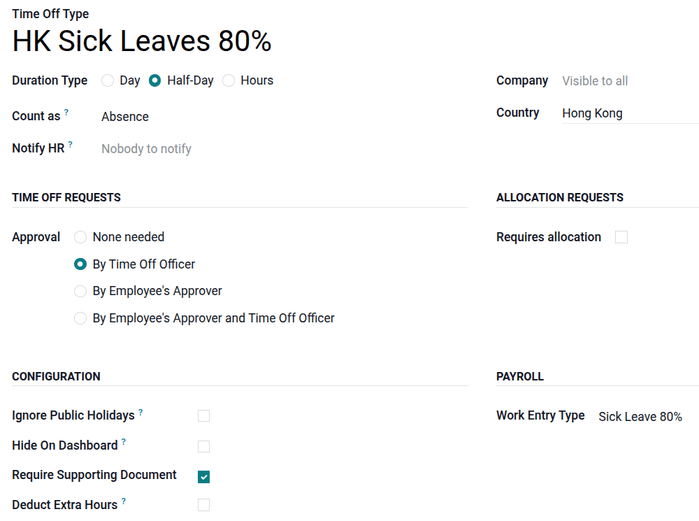
Odoo supports 11 work specific HK work entry types which are used together with the Time Off app:
Sick Leave 80%: Paid sick leave compensated at 80% of the employee’s average daily wage.
Compassionate Leave: Leave granted for personal emergencies, such as the death of a family member.
Marriage Leave: Time off granted to an employee for their wedding.
Examination Leave: Leave granted to an employee to take professional examinations.
Maternity Leave: Statutory leave granted to female employees for childbirth.
Maternity Leave 80%: Maternity leave compensated at 80% of the average daily wage.
Paternity Leave: Statutory leave granted to male employees following a child’s birth.
Statutory Holiday: Mandatory public holidays recognized by Hong Kong employment law.
Public Holiday: General holidays observed by banks and businesses in Hong Kong.
Weekend: Standard non-working days for the employee.
MPF schemes
Odoo allows multiple MPF scheme configurations (currently 24 schemes), creation of new schemes, different MPF groups and member classes, and definition of income for automated MPF calculations. In alignment with eMPF requirements, Odoo-generated eMPF contribution reports are ready to upload to the eMPF portal.
Configuring an eMPF scheme
Follow these steps to configure an eMPF scheme:
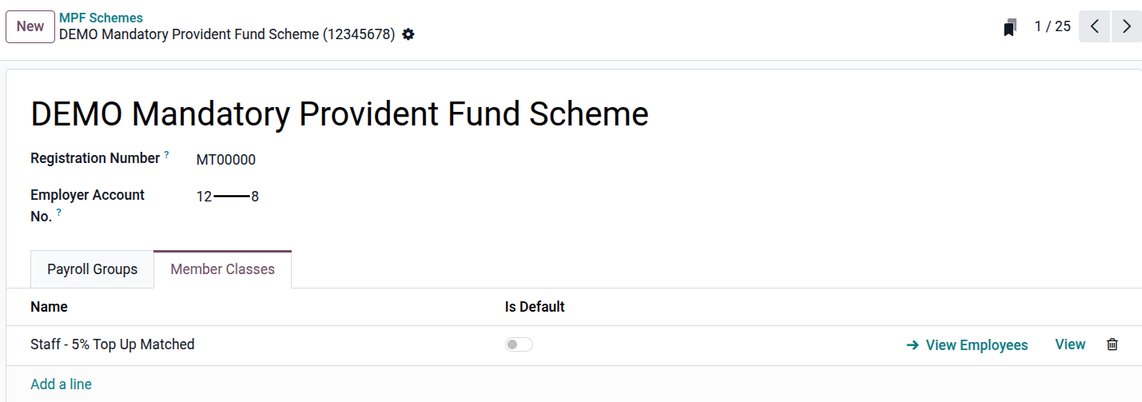
Click New or select an eMPF scheme to configure. Enter the Employer Account No. (this value is specific to the current company).
Click Add a line to create new payroll groups (used for mandatory contributions) and member classes (used for voluntary contributions).
Note
Employers can define one default payroll group or member class which is shown as the default selection upon MPF selection whenever creating new employees in .
In creating a member class, click View to configure each contribution type, option, amount of income, and definition of income.
Contribution Type: Select Employee’s Voluntary Contribution, Employer’s Voluntary Contribution, or Employer’s Voluntary Contribution 2.
Option: Defines how much voluntary contribution is calculated.
Fixed Percentage of Income: Contribution according to a percentage.
Fixed Amount: Contribution according to a fixed amount.
Match Employee’s Voluntary Contribution: Contribution matches the employee’s voluntary contribution.
Fixed Percentage of Income minus Mandatory Contribution: Contribution capped with mandatory contribution.
Amount: Amount to apply as a percentage or fixed amount.
Definition of Income: Define which income is used to calculate voluntary contributions.
Relevant Wages: Based on all wages (commissions, bonuses, etc.) the employee receives after calculation.
Basic Wage: Based on the basic wage (wage on contract) the employee receives.
Employee configuration
To create an employee record, navigate to . Click New in the upper-left corner. Fill in the primary contact details, then configure the following tabs:
Work tab
Under the Work tab, configure organizational information.
Work: Set department, job title, and manager.
Departure: Only visible after archiving an employee record.
Departure reason: Used in eMPF reports for termination payment checks.
Departure date: Used in IR56 forms.
Personal tab
Under the Personal tab, configure personal information.
Private Contact: Set surname, given name, name in Chinese (if any), private email, phone number, and bank accounts.
Personal information: Set employee legal name, birth date, and gender.
Identification No: Set the HKID of the employee.
Location: Set Private Address.
Important
The Bank Account needs to be marked as trusted. Having an untrusted bank account for an employee causes an error in the pay run. To achieve this, click on the right-arrow button next to the bank account number field. Set the Send Money to field to Trusted by clicking on the toggle.
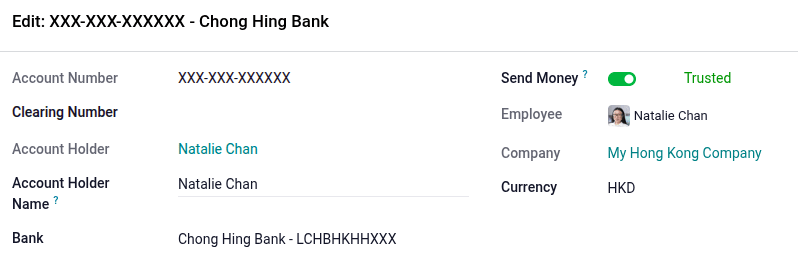
Note
Mandatory personal information for government reports: MPF: Surname, Given Name, Name in Chinese, Phone, Birthday, Private Address, Identification No / Passport No. IRD Reports: Surname, Given Name, Phone, Birthday, Gender, Identification No / Passport No.
Payroll tab
Contract overview section
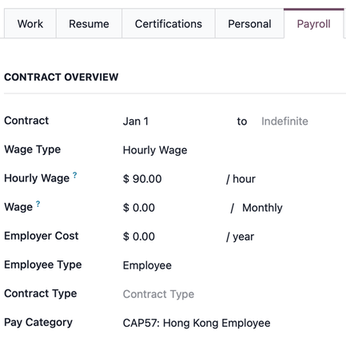
Contract: Select contract start and end dates for contract management.
Wage Type: Select Fixed Wage or Hourly Wage.
Wage: Define the employee’s monthly wage.
Pay Category: Select CAP57: Hong Kong Employee for monthly Hong Kong payroll calculations. This defines when the employee is paid, their default working schedule, and the work entry type it applies to.
Tip
When the hourly wage option is selected, the Hourly Wage field is displayed to input the employee’s hourly rate. You shouldn’t put any value in the Wage field for hourly paid employees, as that field is based on monthly pay.
Schedule section
Work Entry Source: Select either Working Schedule, Attendances, or Planning. This field determines how the work entries are accounted for in the payslip.
Working Schedule: Work entries are generated automatically based on the employee’s working schedule.
Attendances: Work entries are generated based on the check-in and check-out period logged in the Attendances app.
Planning: Work entries are generated from planning shifts only.
Working Hours: Select HK Standard 40 hours/week or any newly created working schedule.
MPF section
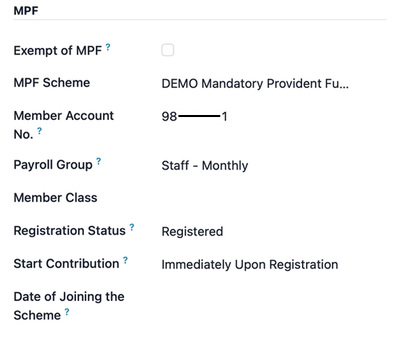
Exempt of MPF: Enable this option for MPF-exempt employees.
MPF Scheme: Select the MPF scheme.
Member Account No.: Enter the employee’s member account number.
Payroll Group: Select the MPF payroll group.
Member Class: Select the MPF member class for voluntary contributions.
Registration Status: Define employee status.
Registration At Next Contribution: Select for enrolling a new MPF member.
Registered: Select for an existing MPF member.
Terminated: Select for a terminated MPF member.
Start Contribution: Define the contribution starting period for new or existing members.
Immediately Upon Registration: Start contribution after registering MPF, starting from the first payslip.
At Due Date: Start contribution after the contribution holiday period. This starts its contribution mostly in the second or third payslip.
Date of Joining the Scheme: Leave empty to set the date automatically upon registration through the eMPF contribution report date.
Benefits section
Internet Subscription: Set an additional internet allowance on top of the current salary package.
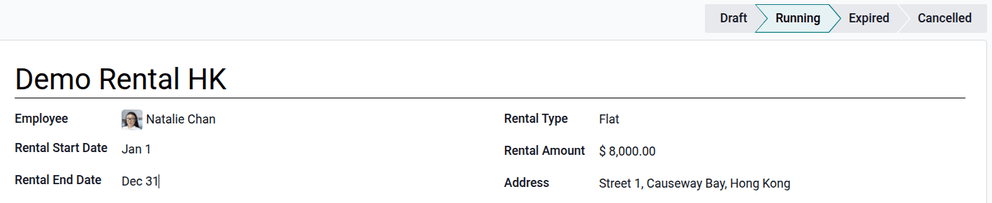
Current Rental: Configure rental information that is used as a rental allowance in the payslip for the IR56B reporting period.
To create a rental record: Click the History button near the current rental field. Click New to create a rental history. Enter the rental reference, rental start date, rental end date, rental type, rental amount, and address. Change the rental status to Running.
Note
Rental status definition: Draft: Rental just created. Running: Rental amount starts adding to payslips from the rental start date. Expired: Rental amount is no longer added to payslips. Cancelled: Rental has been canceled.
Run HK payroll
Before running payroll, the payroll officer must validate employee work entries to confirm pay accuracy and catch errors. This includes checking that all time off is approved and any overtime is appropriate.
Work entries sync based on the employee’s contract configuration. Odoo pulls from the assigned working schedule, attendance records, planning schedule, and approved time off. Any discrepancies or conflicts must be resolved, then the work entries can be regenerated.
Once everything is correct, draft payslips can be created individually or in groups, referred to in the Payroll app as pay runs.
Note
If the work entry or salary inputs for an employee are amended, click the (gear) icon to refresh the payslip’s worked days and salary inputs tab.
Individual payslip
To create an individual payslip in the Payroll app: Go to . Click New Off-Cyle to create a payslip for a single employee. Select the employee and period.
Tip
Odoo automatically excludes out-of-contract days for pro-rata calculations (i.e., you do not need to select the period according to the employee joining date; Odoo automatically excludes out-of-contract days and reduces from the basic salary).
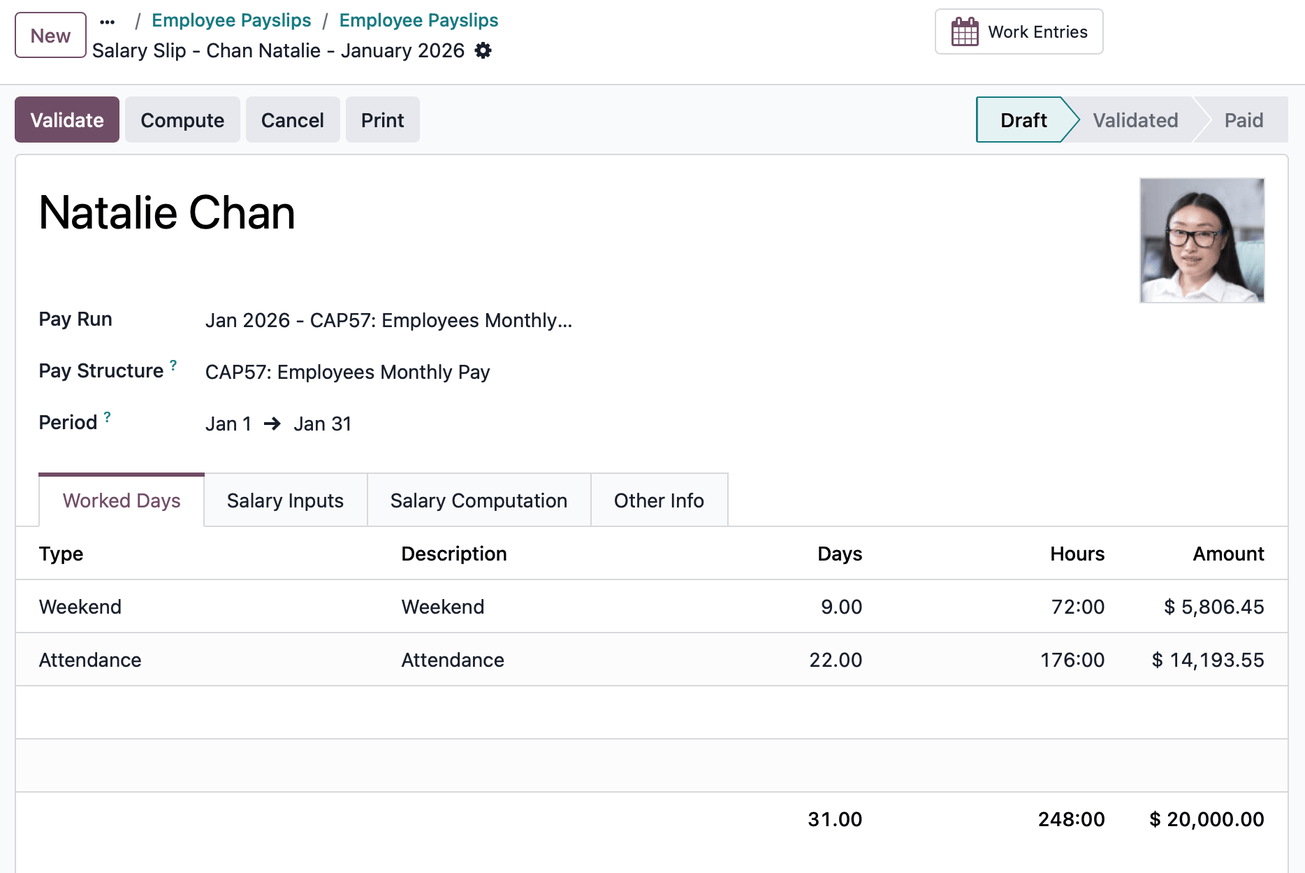
Once the payslips are drafted, review them for accuracy. Check the Worked Days tab, Salary Inputs tab, and Other info tab. Ensure the listed worked time is correct, as well as any other inputs. Add any missing optional inputs, such as commissions, tips, reimbursements, etc.
Click the Compute Sheet button, then click the Validate button.
Important
Once the payslip is validated, work entries are generated and cannot be edited. Cancel the payslip and set it to draft again if there are any updates.
Batch pay run (payslips in groups)
To create a batch pay run in the Payroll app: Go to . Click New to create a new pay run. Select the salary structure, pay schedule, MPF scheme, payroll group, and period.
Note
The MPF scheme and payroll group are optional; if there is only one scheme and one group, you can leave it blank.
Select employee(s). A pay run is created along with the drafted employee payslips. Check all calculations and click the Validate button.

Important
An eMPF report is automatically generated after every pay run. Click the eMPF report or find it in .
Accounting check
The accounting process when running payroll has two components: creating journal entries, and registering payments. For each component, there are two possible scenarios: individual or batch.
Journal entry creation
After payslips are confirmed and validated, journal entries are posted either individually or in a batch. The journal entry is created first as a draft.
Important
It must be decided if journal entries are done individually or in batches (Batch Account Move Lines) in the configuration before running payroll.
Individual journal entries
Without enabling the batch account move line option, you need manual journal entries postings for each payslip, regardless of using a pay run or individual payslip. Select a payslip and click the Journal Entry (Draft) button.
Important
The Pay button appears only for individual journal entries posting. Enabling the Batch Account Move Lines option causes this button to disappear.
Click the Post button. Each payslip is automatically posted as individual journal entries in .
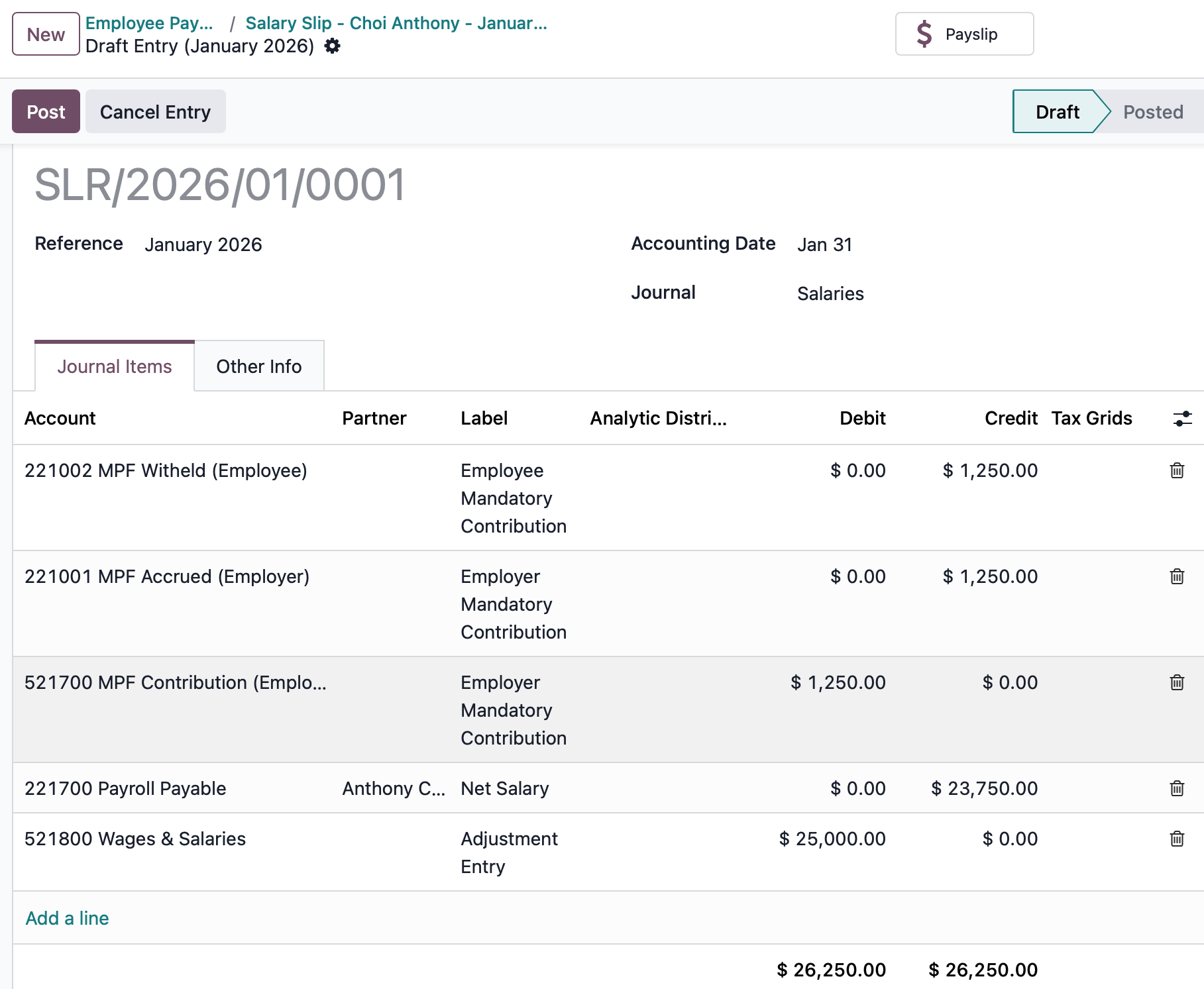
Four accounts from the Hong Kong CoA are included with the payroll localization:
221001 MPF Accrued (Employer): Accrue MPF benefits that are spent by employers.221002 MPF Withheld (Employee): Withheld MPF benefits that are paid by employees, which are paid to the MPF provider soon.521700 MPF Contribution (Employer): Employer portion of MPF contributions expected to be paid to the MPF provider soon.221700 Salaries & Wages Payable: Net salary owed to the employee.
Batch entries
Enabling Batch Account Move Lines aggregates all accounting entries for the period into a single account move line. Click the Journal Entry (Draft) button (which only appears after enabling the batch account move line in payroll configuration for pay runs). Click the Post button. All payslips are automatically consolidated as one journal entry.
Register payment
After the journal entries are validated, Odoo generates payment report files.
Important
To generate payments from payslips, an employee must have a trusted bank account. If the employee’s bank account is not marked as trusted, payment files cannot be generated.
HSBC Auto Pay Report: Click HSBC Auto Pay Report. (You must configure the HSBC Autopay bank account in configuration for this button to appear). Configure the HSBC Autopay report information. Click the Confirm button. Click the download icon to download the
.apcHSBC report.Payment Report: Click Payment Report. Payments can be grouped by partner if there is a partner associated with a salary rule. Select the export format and click Generate to download the CSV.
Payroll reporting
The Hong Kong localization contains several reports unique to HK, which provide eMPF
contribution reports and auto-generated IR56 reports (both in .xml and PDF formats).
Important
Payslips must be validated in order to generate eMPF reports and IR56 reports.
eMPF contribution reports
eMPF contribution reports can be generated in two ways:
Auto generated reports: After every pay run, eMPF contributions reports can be found in .
Manual generated reports: eMPF contribution reports can be generated manually only after the payslips are validated.
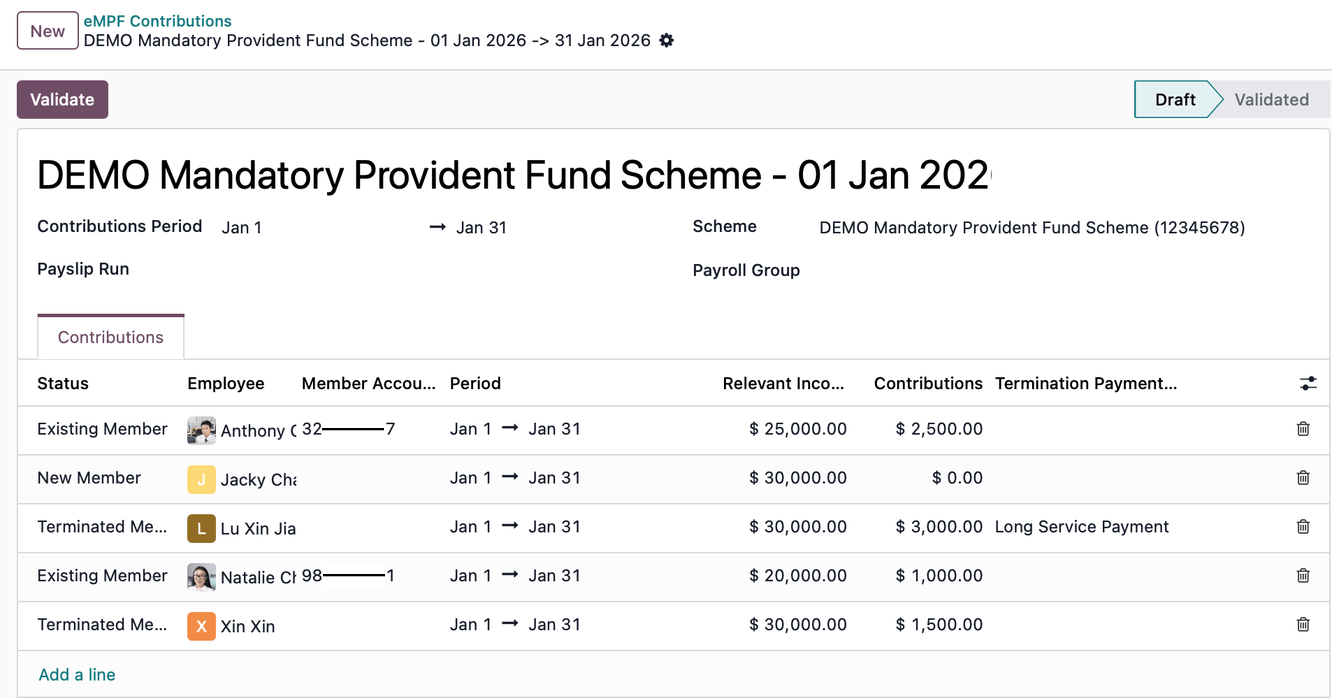
Click . Click New. Select the contribution period, scheme, and payroll group to generate the report.
Member status:
Existing Member: Employees making monthly contributions.
New Member: New employees in holiday periods for contributions.
Terminated Member: Employee leaving the company.
Termination payment:
L: Appears if a leaving employee has a long service payment.
S: Appears if a leaving employee has a severance payment.
Important
Each contribution line can be amendable (i.e., member status and termination payment type can be updated or deleted). However, relevant income and contributions cannot be edited. If the contribution line for an employee is amended, click the (gear) icon to refresh the information.
Click the Validate button. If there are no errors, eMPF contribution reports
are generated in three different .csv files inside a zip file, which are ready to
upload to the eMPF portal: new employees.csv, contributions.csv, and
terminated employees.csv.
Important
Warnings mainly raise to align with eMPF requirements for employee information. Employees must be 18-60 years of age. The phone number must be a valid Hong Kong phone number.
IR56 reports
Odoo provides four IRD reports:
IR56B (Annual Return): The Employer’s Return of Remuneration and Pensions; submitted annually for all existing employees.
IR56E (New Hire): Notification of Commencement of Employment; submitted for new employees within three months of their start date.
IR56F (Termination): Notification of Cessation of Employment for employees leaving the company but remaining in Hong Kong.
IR56G (Departure): Notification of Cessation of Employment for employees leaving Hong Kong permanently or for a long period.
Note
When generating the IR56B in Odoo, the system automatically looks at the date on the payslips to pull all records falling within the last year, April 1 to March 31 of the current year. Once an employer files an IR56F or IR56G for an employee, it should not be included again in the annual IR56B to avoid double-reporting income.
Generating an IR56 report
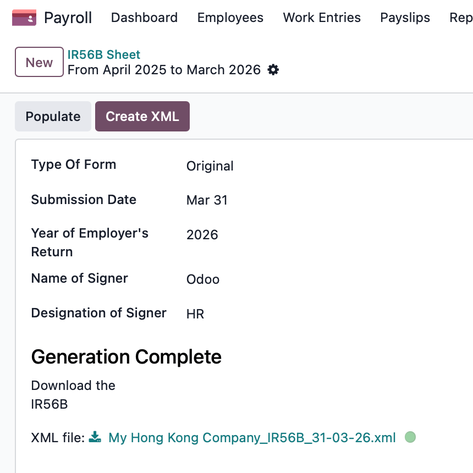
Go to , and select one of the IR56B/E/F/G sheet options. Click New. Fill in the relevant information for the IRD report (e.g., Submission Date, Year of Employer’s Return). Click the Populate button.
The Create XML and Eligible Employees smart buttons appear if there is relevant generated payslip information. Click Create XML to download the XML report. Click Eligible Employees to view the list and select Generate PDFs to queue PDF document generation.
Payslip tabs
Different tabs in each payslip define worked days used to calculate payroll, additional salary inputs to add to the payslip, how salary computation is handled, and other info that impacts the payslip.
Worked Days: Details all the individual attendance records for the time period, including both worked time and any time off taken. It is auto-populated and cannot be edited.
Salary Inputs: Details where additional salary inputs are listed, such as deductions, reimbursements, and expenses. Click Add Inputs to manually include them.
Salary Computation: Where all the individual salary rules are listed and calculated, including everything from the employee’s salary to all the deductions, taxes, and MPF contributions.
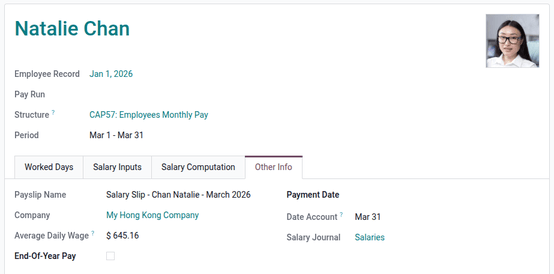
Other Info: Shows the Average Daily Wage rate that is used to calculate statutory HK holidays and entitlements. Also contains the End-of-Year Pay :
Note
Manually adding an end-of-year payment to a specific payslip may require saving the record manually, clicking the (gear) icon, and then selecting Recompute Whole Sheet.
Understanding Hong Kong payroll
In Hong Kong, payroll calculations typically follow a standard daily wage formula:
However, the Employment (Amendment) Ordinance 2007 (often referred to as the “713 Ordinance”) requires employers to use the Average Daily Wage (ADW) when calculating specific statutory entitlements. Statutory entitlements requiring ADW include: holiday pay, annual leave pay, sickness allowance, maternity leave pay, paternity leave pay, end of year payment, and payment in lieu of notice.
To calculate the ADW, use the earnings and days from the preceding 12 months:
Where:
Total Wage in 12-month period: All earnings in the last 12 months (e.g., basic salary, overtime, commissions, and allowances).
Wages of Non-full pay: Any wages paid at less than the full rate (e.g., sick leave, maternity/paternity leave, etc).
Total Days in 12-month period: Total calendar days in the 12-month reference period.
Days of Non-full pay: The specific number of days for which the employee was not paid in full.
Important
Odoo requires historical payroll records to calculate ADW accurately. If no prior records exist, the ADW calculation always results in zero.
Calculation examples
CAP 57: Employees Monthly Pay
Calculate the March payslip for Natalie Chan who joined Jan 1, 2026, with a monthly salary of 20K.
Jan: Monthly salary 20K.
Feb: Monthly salary 20K and 5K commission.
Mar: Apply for one full-paid paternity leave and one sick leave with 80% ADW in March.
Calculate ADW:
Total wages earned: 20,000 + 25,000 = 45,000
Total days: 31 + 28 = 59 days
Calculate leave payment and total wages:
One full day paternity leave (full paid ADW) = 762.71
One full day sickness leave 80% (80% paid ADW) = 762.71 * 80% = 610.17
Attendance = Daily wage * num of working days = (20,000 / 31) * 20 = 12,903.23
Weekend = Daily wage * num of weekends = (20,000 / 31) * 9 = 5,806.45
Wages earned for Mar = 762.71 + 610.17 + 12,903.23 + 5,806.45 = 20,082.56
Calculate HK compliant payslip:
Basic salary = 20,082.56
MPF gross = 20,082.56
Employee mandatory contribution = 20,082.56 * 5% = 1,004.13
Net salary earned for Mar = 20,082.56 - 1,004.13 = 19,078.43
CAP 57: Payment in Lieu of Notice
Calculate payment in lieu of notice for Natalie Chan who joined Jan 1, 2026, with a monthly salary of 20K and was fired in Mar with one month of payment in lieu of notice.
Jan: Monthly salary 20K.
Feb: Monthly salary 20K and 5K commission.
1. Calculate average monthly salary:
Days in average month: 365 days / 12 months = 30.41667 days
2. Calculate payment in lieu of notice:
CAP 57: Long Service Payment
Calculate long service payment for Anthony Choi who joined Jan 1, 2021, with a monthly salary of 20K and leaves the company on Feb 28, 2026.
Jan: Monthly salary 20K.
Feb: Monthly salary 20K.
1. Calculate long service payment:
Last month’s monthly salary record must be in Odoo to calculate SP/LSP. The LSP is based on pre/post transition according to the HK Labour calculator:
2. Calculate long service payment with MPF offset:
Pre-transition offset: Total employee mandatory contributions made before May 2025 can be excluded from the long service payment. Example: If Anthony’s total employee mandatory contribution before May 2025 was 7,047.98, this amount is treated as a pre-transition offset and excluded from the long service payment.
Post-transition offset: Employee mandatory contributions made after May 2025 cannot be excluded (no post-transition offset).
CAP 57: Severance Payment
Calculate severance payment for Anthony Choi who joined Jan 1, 2023, with a monthly salary of 20K and leaves the company on Feb 28, 2026.
Jan: Monthly salary 20K.
Feb: Monthly salary 20K.
1. Calculate severance payment:
Last month’s monthly salary record must be in Odoo to calculate SP/LSP. The SP is based on pre/post transition according to the HK Labour calculator:
2. Calculate severance payment with MPF offset:
Pre-transition offset: Total employee mandatory contributions made before May 2025 can be excluded from the severance payment. Example: If Anthony’s total employee mandatory contribution before May 2025 was 7,047.98, this amount is treated as a pre-transition offset and excluded from the severance payment.
Post-transition offset: Employee mandatory contributions made after May 2025 cannot be excluded (no post-transition offset).